Guides
How to automate invoice processing: Excel vs Power Automate vs AI agents
Automate invoice processing three ways: Excel + Power Query, Power Automate AI Builder, or an AI agent with a review queue. Costs, setup and where each breaks.
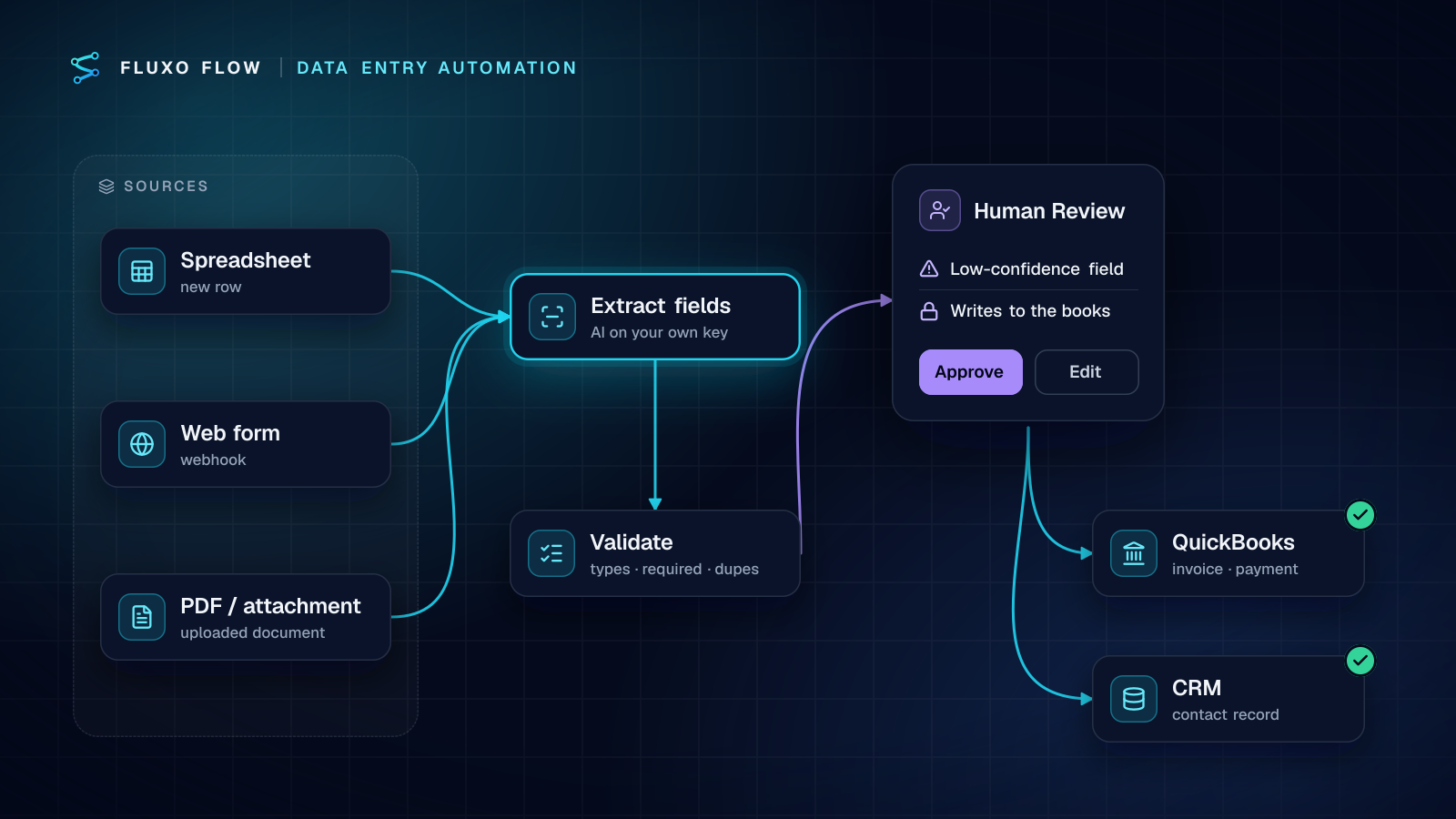
To automate invoice processing, build a five-stage pipeline: capture each invoice, extract the fields your accounting tool needs (vendor, dates, line items, totals), validate them against your records, send anything uncertain to a person for approval, then export the clean record to QuickBooks, Xero or your ERP.
This guide compares three ways to build that pipeline (Excel with Power Query, Power Automate with AI Builder, and an AI agent with a review queue) by cost, setup time and where each one breaks. If your main worry is fraud and payment approvals rather than data entry, read our companion guide on automating invoice intake and approvals without losing control.
What does it mean to automate invoice processing?
It means replacing manual data entry with five stages that run the same way every time:
- Capture. The invoice arrives by email, upload or webhook.
- Extraction. Vendor, invoice number, dates, line items and totals become structured fields.
- Validation. Totals are checked, duplicates and mismatches against your records are flagged.
- Approval. Anything uncertain waits for a person to sign off before money moves.
- Export. The clean record is written to QuickBooks, Xero or your ERP.
Microsoft describes the same structure for its AI Builder invoice processing model, which extracts predefined fields from invoice files inside Power Automate flows. The approval stage is where most small teams want control, and it's the stage the three approaches handle most differently.
How do you automate invoice processing in Excel, and where does it break?
Excel is where most small businesses start, and at low volume it works. The catch is that it only automates what is already typed or exported into a file. Scanned PDFs and photographed receipts still need a person to read them.
The Excel workflow in four steps
- Collect invoices into one folder, downloading attachments from your inbox by hand.
- Import them with Power Query, which can pull CSV, Excel and (on Windows) PDF files from a folder, or use Flash Fill to pattern-match fields like invoice number and total.
- Clean them with a recorded macro: normalize dates, map vendor names, append rows to your ledger sheet.
- Post the result to QuickBooks or Xero through their CSV import.
For a few dozen invoices a month, that is a reasonable weekend build.
Where Excel breaks: intake, formats and audit trail
- Intake. Excel has no OCR, so a scanned invoice is invisible until someone retypes it.
- Format drift. Every vendor lays out invoices differently, so each new vendor can mean editing the query or macro.
- Audit trail. A cell edit leaves no record of who changed what, which matters the day an invoice is paid twice.
How does Power Automate AI Builder handle invoice extraction?
Power Automate ships a prebuilt invoice processing model, so you don't train anything on day one. You point it at a file and it returns vendor name, invoice number, dates, totals, tax and line items, each with a confidence score. Standard digital layouts from known vendors usually work out of the box. Unusual layouts, scans and handwriting are where confidence drops and you start thinking about a custom model or a review step.
Wiring the flow: trigger, extraction, export
The flow has three parts: trigger on a new file in SharePoint or OneDrive or a new email in Outlook, run the invoice model against the file, then write the extracted fields to Excel, Dataverse or Dynamics 365. Approvals can be added with Power Automate's approval actions.
What it costs
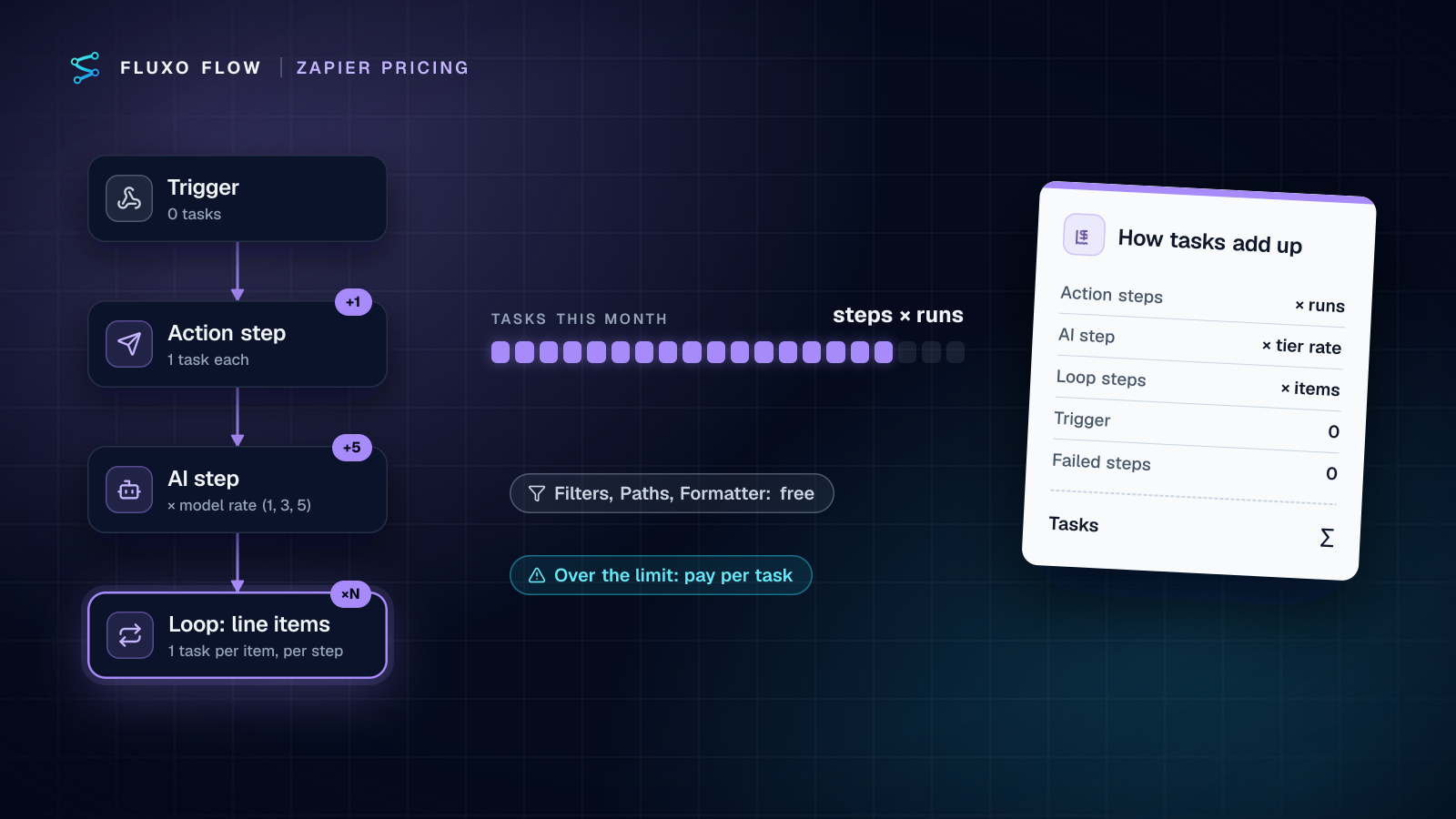
Budget beyond the per-user price. AI Builder usage consumes AI Builder credits, and some connectors are premium, so check the current Power Automate pricing page for what your plan includes before you build. Every extraction attempt uses capacity, including retries on invoices that fail, so cost grows with volume.
If you already live in Microsoft 365 and your invoice formats are stable, this is a strong option.
When should you use an AI agent instead of a Power Automate flow?
Build in Power Automate when your invoice logic is stable and Microsoft-native: invoices land in Outlook or SharePoint, the field list rarely changes and you already pay for the licenses.
Reach for an AI agent with a review queue when:
- Volume or formats keep changing, so you'd be re-editing a flow every month.
- You want a person to approve before anything posts. A misread total on a large invoice costs more than any tool.
- You'd rather not track per-run capacity as volume grows.
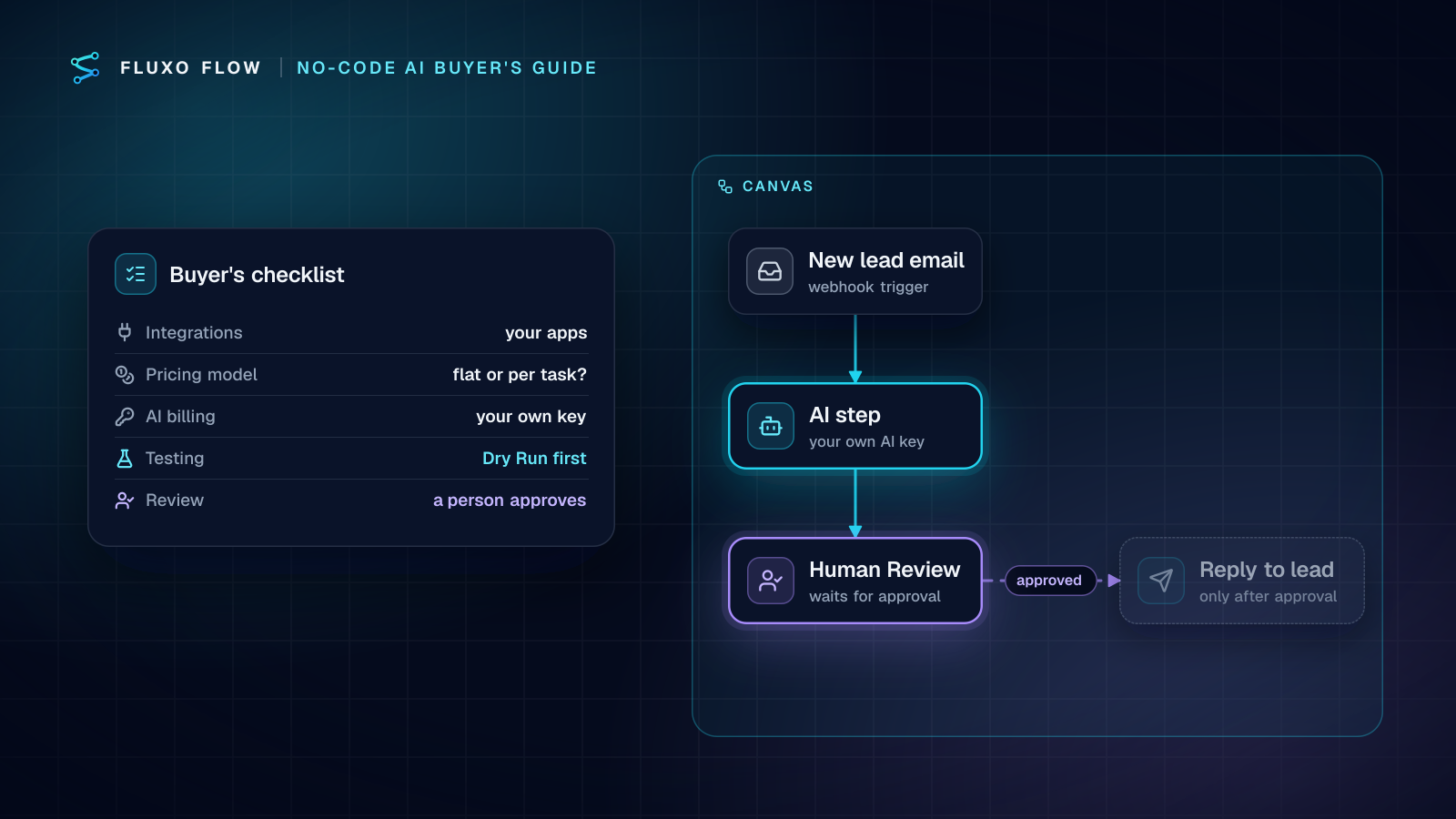
That is the gap Fluxo Flow's document processor agent targets. AI extraction runs on your own AI provider key, billed by your provider at cost with no markup. Before anything goes live, a free Dry Run walks the whole workflow with sample data: nothing is posted and no AI is called. Live runs and the Human Review step, where a person approves each invoice before it moves on, are on paid plans from $39/mo. One limit to know up front: Fluxo Flow's QuickBooks and Xero connectors create customer invoices and record payments, but they don't create vendor bills yet. For payables, the approved record goes out as a CSV for your accounting tool's import, a row in Google Sheets or Excel, or a message to your bookkeeper. The honest trade-offs: fewer prebuilt connectors than Zapier or Make, no direct bill posting yet, and you hold your own AI provider account.
How do the approaches compare on cost and setup?
| Approach | What you pay for | Setup | Main accuracy risk |
|---|---|---|---|
| Excel + Power Query | Your time: collecting, retyping scans, fixing drift | Days | Manual entry stays in the loop |
| Power Automate + AI Builder | Plan license plus AI Builder credits and any premium connectors; grows with volume | Days to weeks | Unusual layouts lower confidence |
| Fluxo Flow document processor | Plan from $39/mo plus your AI provider's token cost at their published rate (no direct bill posting yet: export via CSV or Sheets) | Hours to days | Edge cases, handled in the Review Queue |
The pricing models differ in shape: Excel costs hours, Power Automate costs capacity that scales with runs, and Fluxo Flow is a flat plan plus tokens you pay your AI provider directly. Price your own volume against each vendor's current pricing page before deciding.
What fields should your pipeline capture for QuickBooks or Xero?
Your extraction is only as good as the schema it writes into. The minimum set for an accounting export:
- Vendor name and ID
- Invoice number
- Issue date and due date
- Currency
- Line items: description, quantity, unit price
- Tax per line, subtotal, tax total and grand total
These map onto the bill and invoice objects in the QuickBooks Online API and the Xero Accounting API.
Add three fields that save you later: a GL account or category per line, the PO number when there is one, and a confidence score per extracted field. The category is where pipelines fail silently: a wrong guess on a large line item goes unnoticed until month-end.
Two rules worth adopting:
- Reject, don't guess. If an invoice is missing its number, vendor or total, hold it rather than posting a partial record. A skipped bill is cheaper than a duplicated one.
- Keep the raw text. Store the extracted text next to the structured fields so you can re-map when your chart of accounts changes without re-reading every PDF.
How do you measure accuracy and handle exceptions?
Sampling and confidence thresholds
Check accuracy on a random sample each week, say 30 to 50 invoices. Compare the extracted vendor, amount, due date and line items with the source, and track field-level accuracy: correct fields divided by total fields. Log misses by field type, because the pattern tells you what to fix. Then set a confidence threshold: anything below it goes to review, anything above it can post. Re-run the sample after any prompt, model or threshold change.
Designing the review queue
Every exception should show the invoice, the extracted fields next to the source and a one-click approve or correct. Common exceptions and where they go:
- Low-confidence extraction: review queue.
- New vendor: hold for approval the first time, then match on repeats.
- Duplicate invoice number: reject and flag, never post.
- Line items don't add up to the total: review, with the mismatch highlighted.
- Missing PO or job reference: to the person who ordered the work, not a shared inbox.
If the share of invoices needing review rises instead of falling after a month, the extraction step is the problem, not your reviewers.
Can I automate invoice processing without coding?
Yes. Power Query and Flash Fill handle simple imports without code, Power Automate's prebuilt invoice model is configured through menus, and an AI agent on a visual canvas lets you connect your inbox, pick the fields and approve results in a review queue without writing scripts.
Does Power Automate AI Builder work with scanned or handwritten invoices?
Partly. The prebuilt model handles standard digital layouts well, but confidence drops on scans, unusual layouts and handwriting. You can train a custom model, which adds setup time and cost; routing low-confidence results to a person is usually the practical fix.
What is the cheapest way to automate fewer than 100 invoices a month?
Excel with Power Query costs only your time, which works until scans or new formats arrive. Beyond that, compare a flat plan against per-run pricing at your volume, and include any accounting-connection fees in the math.
How do I get extracted invoice data into QuickBooks or Xero?
Three routes: export a CSV and use the accounting tool's import, call the QuickBooks or Xero API directly, or use an automation platform that writes the records for you. Whichever you pick, hold any invoice missing its number, vendor or total instead of posting a partial record.
Start with one vendor's invoices, Dry Run the pipeline on sample data, and only let it post once the review queue is quiet.
About this guide: written and edited by Husam Daoud with help from AI tools. Prices, plan limits and integration details come from Fluxo Flow's own product data, so they stay current.
Build your first workflow today.
Sketch it on the canvas, test it with a Dry Run, and pay nothing until you want it running for real.
- invoices
- accounts payable
- QuickBooks
- Xero
- Power Automate
- Excel
- document extraction