Playbooks
Automating invoice intake and approvals without losing control
How to automate invoice approval with AI: extract fields, check them against your records, route approvals by risk and keep a person on payments that matter.
Accounts payable is a perfect candidate for automation and a terrible place for blind automation. The work is repetitive: open the invoice, type the vendor, number, date and amount into the accounting system, find the purchase order, chase the approver. But the stakes are real. A duplicated invoice gets paid twice, and a fraudulent "we've changed our bank details" email can cost more than a year of software. Business email compromise, the family of scams that includes fake bank-detail changes, drew 21,442 complaints and $2,770,151,146 in reported losses to the FBI's Internet Crime Complaint Center in 2024 (IC3 2024 annual report), second only to investment fraud by losses.
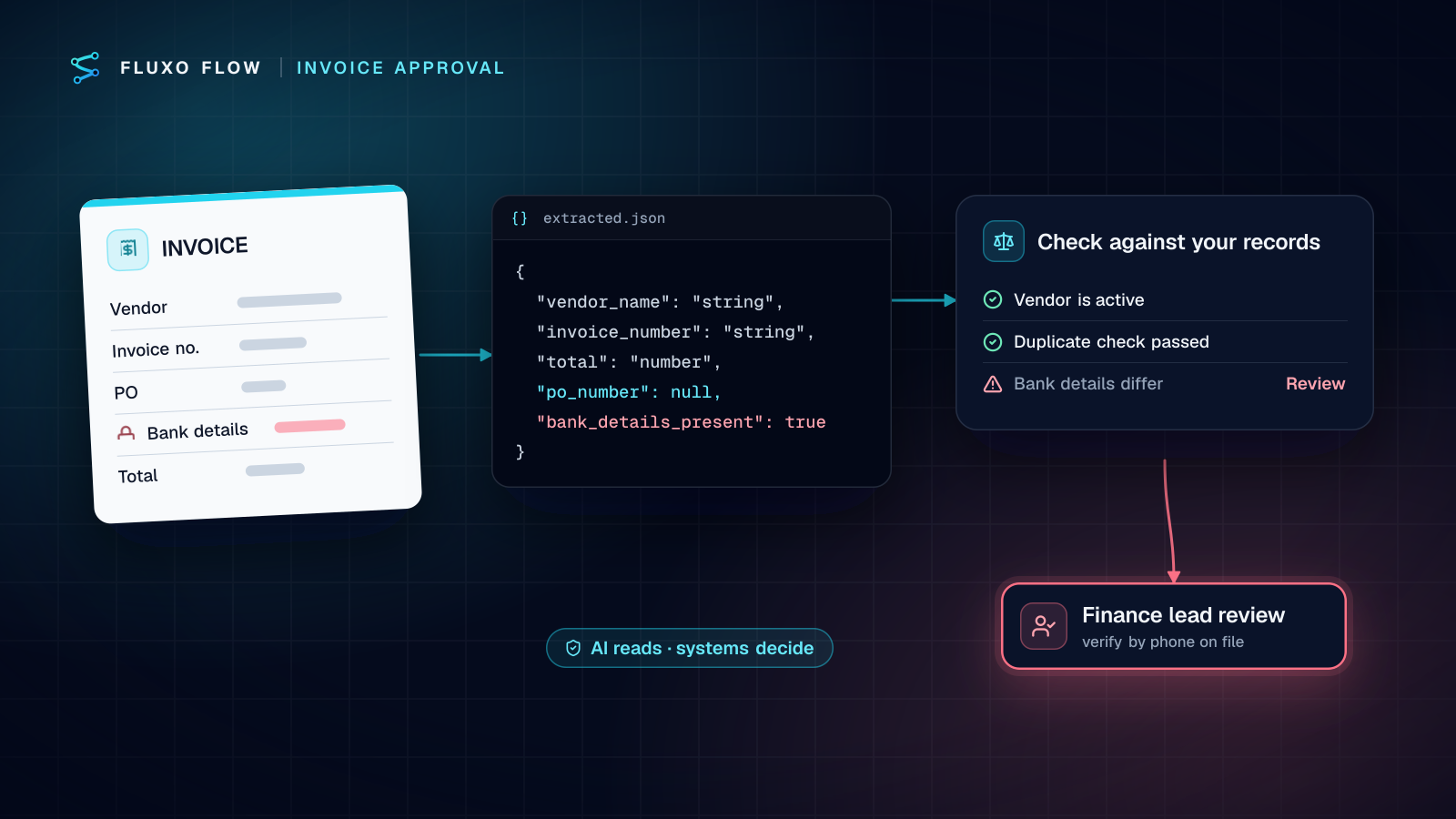
Here's how to automate invoice approval safely: let an AI step extract the fields, let your records (vendor list, purchase orders, bank details on file) decide what's normal, route by amount and risk, and require a person to approve every payment above a threshold and every invoice with anything unusual. The goal is not to remove people from payables. It's to remove the typing and chasing, so the people involved spend their time on the decisions only they can make.
The principles
Three rules shape every step below:
- AI reads, systems decide. A model is good at pulling fields out of messy invoice text. It should never be the thing that decides whether money moves.
- Every payment above a threshold gets a human approval. The threshold is yours; the approval is not optional.
- Anything unusual goes to a person by default. New vendor, changed bank details, no matching purchase order, a total that doesn't add up: review, every time.
Getting the invoice in
Most teams already have a way to turn an invoice into text: an inbound email parsing service, an OCR tool, or the document capture built into their accounting software. Fluxo Flow works on the text and data those tools produce. Point them at a Webhook trigger so each new invoice starts a run, and secure the webhook with a shared secret or an HMAC signature.
If you need OCR as part of the flow, call your OCR provider with an HTTP Request step, storing its API key in the credential vault so the secret never sits in the workflow itself.
The workflow
Here's the full shape on the canvas:
- Webhook trigger receives the invoice text plus metadata (sender, received date, file link).
- Memory + Router skip invoices you've already processed.
- Agent (AI) step extracts structured fields.
- Validator checks the extraction.
- HTTP Request / Integration looks up the vendor and purchase order in your accounting system.
- Router picks an approval path from the amount and the checks.
- Human Review pauses for sign-off.
- Actions create the bill, notify the team and file the record.
- Error Handler catches failures and tells someone.
Stop duplicates first
Duplicate invoices are the most common payables error, and senders often email the same invoice twice. Use a persistent Memory step keyed on vendor plus invoice number. At the start of each run, read the key; if it exists, a Router sends the run to a "duplicate" branch that just logs it. After a successful run, write the key. Memory can keep values across runs, so the check survives from one day to the next.
Extract with a strict schema
Give the AI step an output schema and a narrow job:
Extract these fields from the invoice text. Return JSON only.
vendor_name, invoice_number, invoice_date (YYYY-MM-DD), due_date (YYYY-MM-DD or null),
currency (ISO code), subtotal, tax, total, po_number (or null),
bank_details_present (true/false), notes (anything unusual, or null).
Never guess. If a field is not in the text, return null.
"Never guess" is the most important line. A null you can route to a person; a confidently invented PO number you might not catch.
Use a small, inexpensive model with a low temperature. Extraction doesn't need creativity, and it runs on your own AI key, so you pay your provider's rate with no markup.
Validate everything the AI returns
The Validator checks data against rules or a JSON schema and sends the run down a pass or fail branch. Check that:
- vendor name, invoice number, date and total are present;
- amounts are numbers greater than zero;
- dates are valid dates;
- the currency is one you pay in.
Anything that fails goes to human review with a note explaining which check failed. Don't drop it, and don't retry the AI until it "passes."
Match against your records
Now check the extraction against systems you trust. With an HTTP Request or Integration step (using a credential from the vault), look up:
- The vendor. Is it an existing, active vendor?
- The purchase order. Does the PO exist, is it open, and does the amount match within your tolerance?
- Bank details. If the invoice includes payment details, do they match the vendor record?
These lookups return facts, not opinions, and they're what the approval routing should depend on.
If you use QuickBooks Online or Xero: our QuickBooks Online and Xero connectors are in beta and cover the sales side today (customers, invoices and payments). For vendor bills, call the accounting API with an HTTP Request step and a credential from the vault.
Route approvals by risk
A Router sends each invoice down the first path whose conditions match. A typical policy:
| Situation | Path |
|---|---|
| Duplicate (already in memory) | Log only, no payment |
| Bank details differ from the vendor record | Review by the finance lead, plus out-of-band verification |
| New or unknown vendor | Review by the finance lead |
| PO matched, total under your auto-approve limit | Create the bill, notify AP in Slack |
| PO matched, total above the limit | Review by the budget owner |
| No PO, or PO amount mismatch | Review by AP |
| Anything else (default) | Review by AP |
Notice that "create the bill without a person" only happens when the vendor is known, a purchase order matches, and the amount is small. Some teams choose to have no auto-approve path at all at first. That's a perfectly good setting: the automation still removes all the data entry.
The approval step
When a live run reaches a Human Review step, it pauses and appears in the Review Queue. Configure each review step with:
- A prompt the approver can act on, including the vendor, amount, due date, PO match result and the AI's notes. The approver shouldn't need to open three systems.
- An assignee for the right person (the budget owner, the finance lead), so reviews don't sit in a shared pile.
- A priority, higher for invoices due soon.
- A timeout with a sensible timeout branch, such as escalating to the finance lead. A payment that silently waits past its due date is a failure too.
Approvers need the Support Agent role or above to decide reviews, and reviewers get a notification in the app's bell. The run then continues down the approved or rejected branch, so a rejection can automatically notify the vendor contact or the requester.
A note on bank detail changes
Payment-redirection fraud usually arrives as a convincing email. No workflow should ever update a vendor's bank details on its own. Route every invoice with new or different payment details to a person, and have that person verify the change by calling a phone number you already have on file, not one from the email.
After approval
On the approved branch:
- Create the bill in your accounting system with an HTTP Request step.
- Post a short Slack message to your AP channel.
- Write the vendor + invoice number key to Memory, so the duplicate check catches resends.
Wrap the "write" steps with an Error Handler. If creating the bill fails after the approval, the handler can notify AP with the details instead of leaving a half-finished run. Action steps can also retry failed calls with exponential or fixed backoff before the handler takes over.
Test before you trust it
Run the whole workflow with Dry Run first. It runs in your browser and simulates every side effect: no bills are created, no Slack messages are posted, and AI steps return placeholder output without using your key. For each Human Review step, pick the decision to simulate (approved, rejected or timeout) and walk every branch.
Then run real invoices through it in parallel with your current process for a week or two. Compare the results. The Compare view puts two runs side by side, and each run's trace shows what every step received and returned.
What you get
- No more typing invoice fields by hand.
- Duplicates caught before they're paid.
- Approvals routed to the right person with everything they need in one place.
- A run history showing what happened to every invoice and why.
What you keep is just as important: a person signs off on every payment that matters, unusual invoices always get a human look, and no AI ever moves money on its own.
Start from the invoice approval template, which already routes large invoices to a person, and add the duplicate check and bank-detail rule from this playbook. For expense claims rather than supplier invoices, the expense report review template follows the same pattern.
Put this into practice
Build it on the canvas and Dry Run it on the Free plan, with no credit card. Run it live on a paid plan, on your own AI key.
- accounts payable
- invoice approval
- finance ops
- human review