Guides
Dry Run vs live run: test automations without side effects
How to test automations without side effects: what a Dry Run simulates, what only a live run can prove, and a 7-step routine before you switch a workflow on.
Every automation eventually does something you can't take back. It sends an email, posts to a customer channel, creates a CRM record or calls an API that charges money. That's the point of automation, and it's also why testing automations is awkward: the obvious way to test is to run the thing, and running the thing has side effects.
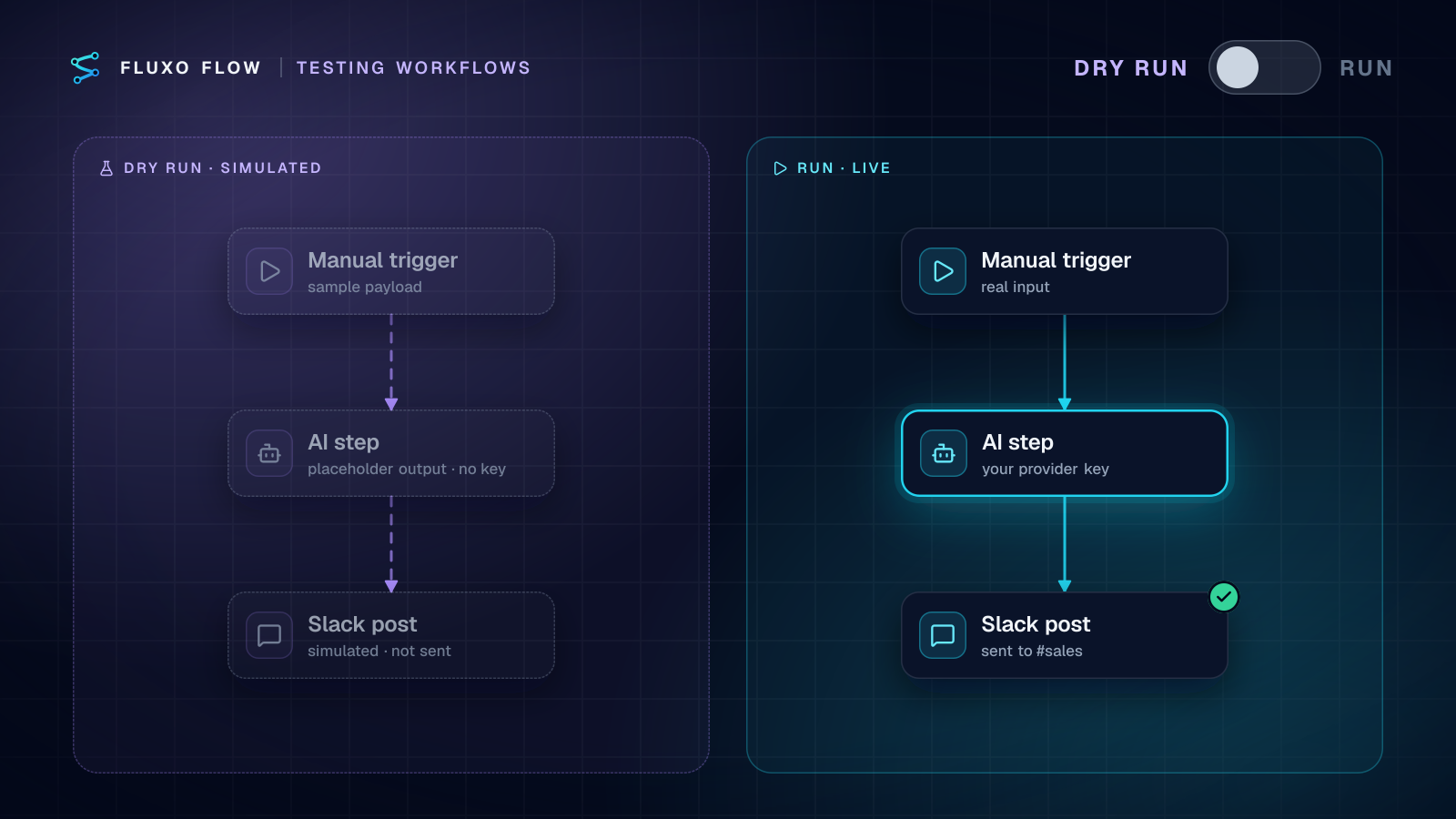
The way out is to separate logic from side effects. Fluxo Flow splits testing into two modes on the canvas: Dry Run simulates every step that would touch the outside world, and Run executes for real. Use Dry Run to prove the logic, then one live run against safe destinations to prove the connections. This guide explains what each mode can and can't prove, and a seven-step routine that catches most problems before they reach a customer.
The two modes at a glance
| Dry Run | Run | |
|---|---|---|
| Where it runs | In your browser | On Fluxo Flow's servers |
| Side effects | Simulated: no emails, webhooks, HTTP writes or Slack posts go out | Real: every step executes against your integrations |
| AI steps | Simulated with placeholder output; no API key used | Use your connected AI provider key |
| Human Review | Uses the decision you pick in the node (approved, rejected or timeout) | Pauses and waits in the Review Queue |
| Limits | None | About 50 seconds and a $2 AI cost cap per run |
| Plan | Every plan, including Free | Paid plans (from Basic) |
Both modes check the workflow first. Validation runs before every Dry Run and Run: the workflow needs exactly one trigger, no cycles and correctly configured nodes. Errors block the run, and warnings ask you to confirm.
What a Dry Run is for
A Dry Run answers the question "does this workflow do what I think it does?" It's for structure and logic:
- Paths. Which branch does a Router take for this input? Does the Validator's fail branch go where you expect?
- Data shape. Does the field you map in step five actually exist in the output of step three? Are your templates filling in the right values?
- Every branch of a review. Because you choose the simulated decision for each Human Review step, you can walk the approved, rejected and timeout branches one after another, without anyone having to click anything.
- Wiring after a change. Adding a Router route, changing a credential or swapping a model can change what happens at run time. A Dry Run shows the path the data takes before anything real is sent.
Because a Dry Run doesn't call your AI provider, it doesn't spend tokens. Run it as often as you like. It's also the whole of the Free plan: you can build workflows and Dry Run them with sample data, and nothing is sent until you upgrade to run them live.
After a Dry Run, the canvas switches to Test view so every node shows its result. Use the Edit/Test toggle in the top bar to go back to editing.
What a Dry Run can't prove
A Dry Run deliberately doesn't talk to the outside world, so anything that depends on the outside world can only be proven by a real run:
- Credentials and connections. An expired token, a revoked key or a missing permission only fails when the call is actually made.
- External APIs. Whether the CRM accepts your payload, whether a field is required, whether you hit a rate limit.
- Real AI output. Placeholder output tests your wiring, not your prompt. Whether the model returns valid JSON in the shape your Validator expects is a live question.
- Timing. A live run has a time limit of about 50 seconds; a slow external API might not fit.
That's why "Dry Run works but Run fails" is a common situation, and a useful one: it tells you the logic is right and the problem is in a connection, a credential or the external service. Open the trace for the failing step and you'll see the exact error.
A testing routine that works
Here's the sequence we recommend for any workflow with real side effects.
1. Build with a Manual trigger
Even if the workflow will eventually run on a schedule or a webhook, start with a Manual trigger. You decide exactly when it runs.
2. Dry Run every branch
Give the trigger a realistic sample payload and Dry Run it. Then change the payload to push it down each branch: the high-value case, the invalid case, the empty case. For every Human Review step, simulate approved, rejected and timeout.
3. Point side effects at yourself
Before the first live run, change the destinations: the email goes to your own address, the Slack post goes to a test channel, the CRM write goes to a sandbox account if your CRM has one. Now a live run is safe.
4. Run it live and read the trace
Press Run. It saves the workflow first, then executes on the server with real side effects and your real AI key. Open the trace and check each step: what it received, what it returned, how long it took and the estimated AI cost. This is where you find the prompt that sometimes returns prose instead of JSON, or the API that wants a date in a different format.
5. Compare runs after every change
Each run is kept in the workflow's run history. When you change a prompt or a model, run the same input again and use Compare in the run history to see Run A and Run B side by side with the differences. It's the quickest way to answer "did my change make it better?"
6. Restore the real destinations and activate
Switch destinations back, save, and only then change the trigger to Scheduled or Webhook. Configuring a schedule or webhook doesn't turn it on; you press Activate in the trigger's settings. That extra step is intentional, so a half-finished workflow can't start firing on its own.
7. Watch the first few real runs
For the first day or two, check the run history. Failed background runs land in your notification bell, along with waiting reviews and AI key problems.
Design workflows that are easy to test
A few habits make both kinds of testing easier:
- Validate after every AI step. A Validator turns "the model returned something odd" into a clear fail branch you can see in a Dry Run and handle in a live one.
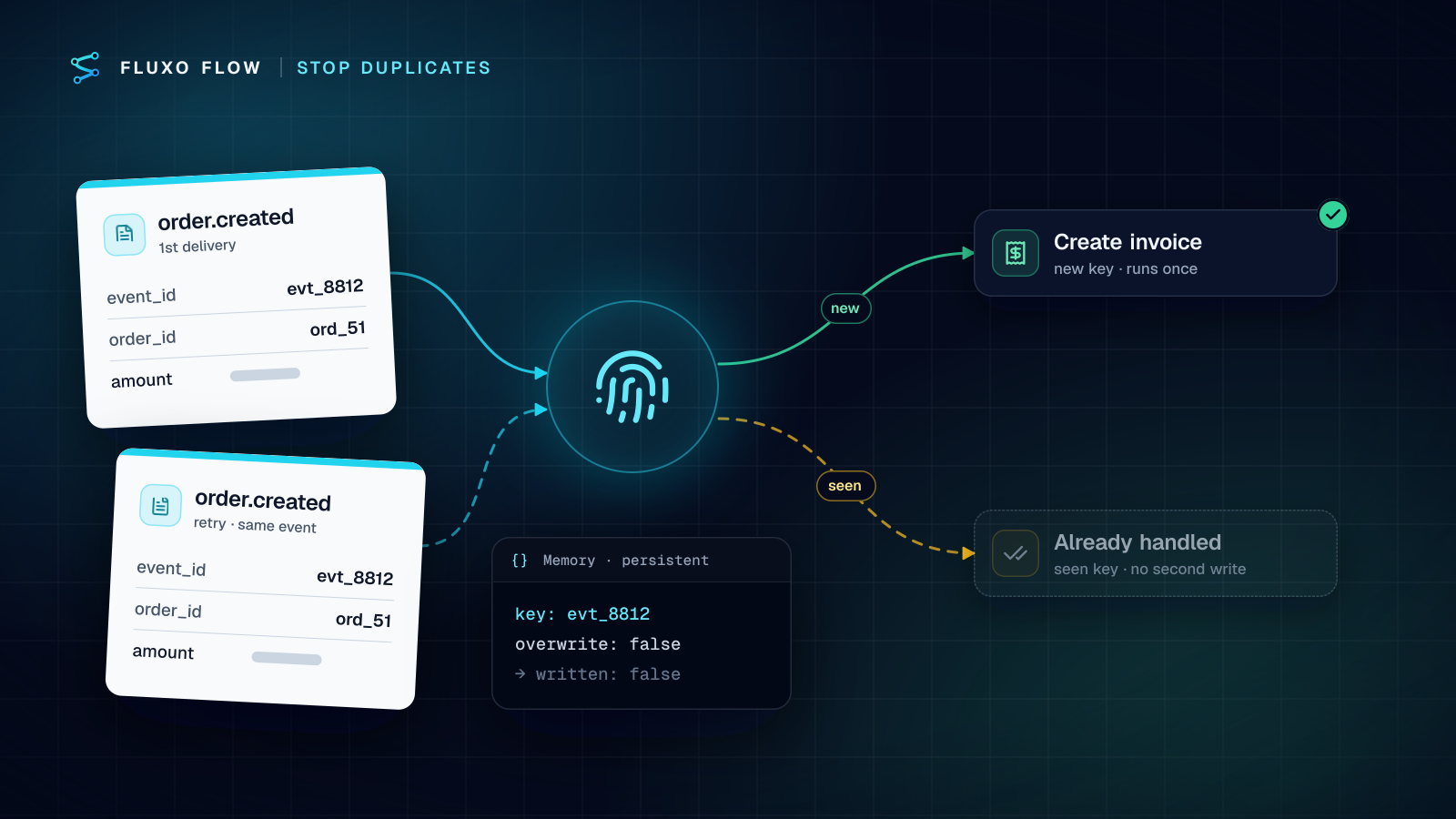
- Make writes safe to repeat. Use a persistent Memory step to record IDs you've already handled, so re-running a test can't create duplicates.
- Catch failures. An Error Handler lets a live run recover or notify someone instead of just stopping, and you can Dry Run that path too.
- Keep versions. Saving creates a version, and you can restore any earlier one (restoring creates a new version, so it can be undone). Save a labelled version before a big change.
When to Dry Run again
Make it a habit to Dry Run after any structural change: a new route, a new step, a different credential or a different model. It costs nothing and takes seconds. Then do one live run with safe destinations before you call the change done.
The takeaway
Dry Run proves your logic without touching anything real. Run proves your connections, your prompts and your timing. Use Dry Run constantly and live runs deliberately, and you'll catch nearly every problem before your customers do.
Try it on a ready-made workflow: open the invoice approval template, which routes large invoices to a Human Review step, and Dry Run it once as approved, once as rejected and once as timed out. It works before you've even connected an AI key. For the review side of testing, see how to design human checkpoints.
Put this into practice
Build it on the canvas and Dry Run it on the Free plan, with no credit card. Run it live on a paid plan, on your own AI key.
- testing
- dry run
- reliability
- workflow design