Guides
Workflow automation for small business: the first five workflows to build
Workflow automation for small business: a scoring method to pick what to automate first, five concrete workflows to build, and what to keep manual.
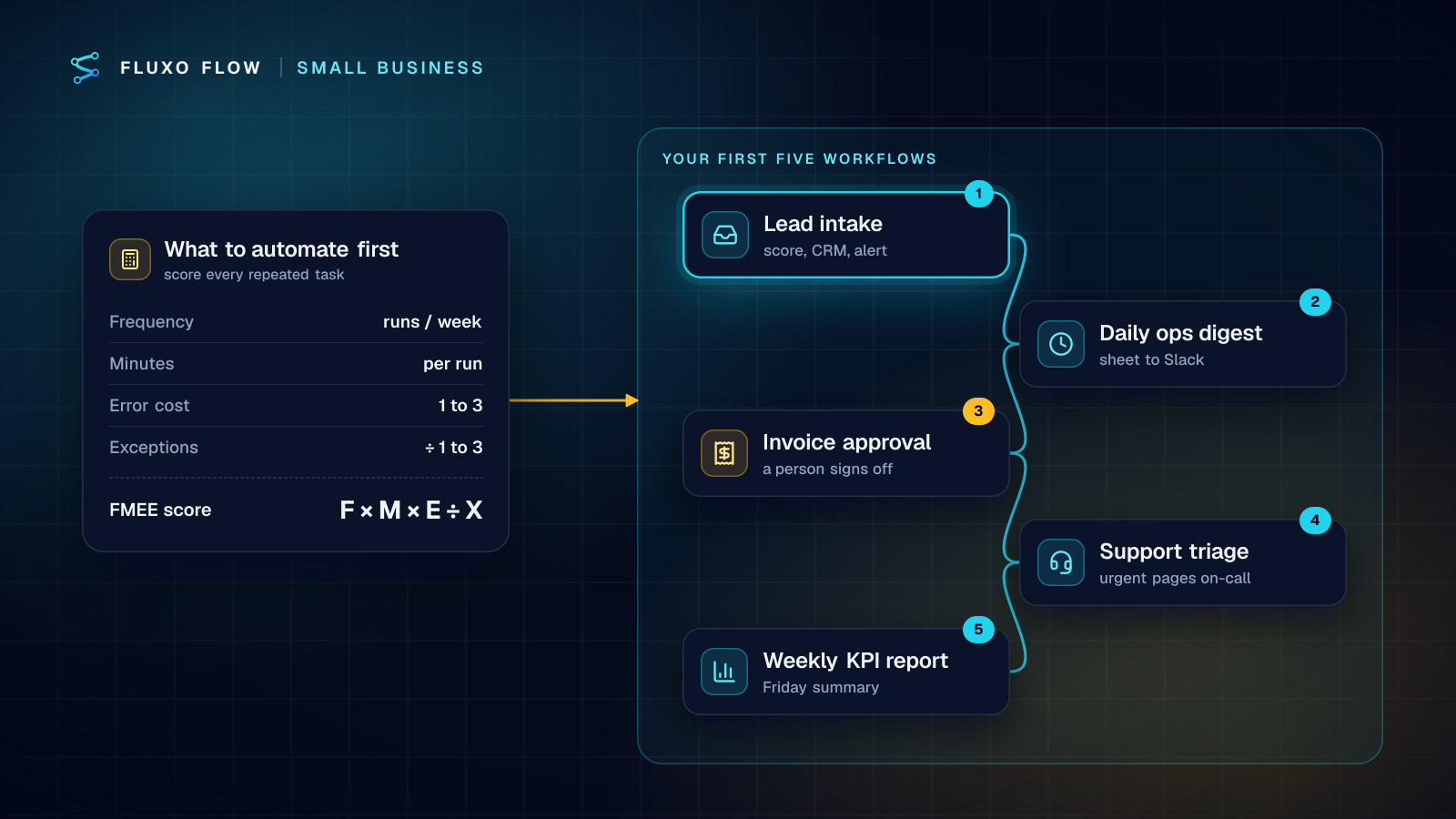
Short answer: for workflow automation in a small business, start with five workflows that run often, follow clear rules and are cheap to get wrong: (1) web leads into your CRM with an alert to sales, (2) a daily operations digest, (3) invoice checks with a person approving payment, (4) support triage, and (5) a weekly KPI report. Pick them with a simple score (frequency × minutes × error cost ÷ exceptions), test each one without side effects, and leave judgment-heavy work manual.
Most guides on this topic list 20 or more ideas and stop there. A list doesn't tell you what to build on Monday. This guide gives you a way to choose, five concrete builds with the exact steps (each maps to a template you can open), what a person still approves in each, and a two-week rollout plan. It's written for owners and ops leads at 5 to 50 person companies without an engineer.
Some context on where small firms are: the US Census Bureau's Business Trends and Outlook Survey found overall business AI use hovering between 17% and 20% from December 2025 to May 2026, with fewer than 20% of firms with four or fewer employees reporting AI use (Census Bureau, published May 26, 2026). So if you haven't automated much yet, you're in the majority. The good news: most of the value in the first five workflows comes from plain automation, with AI used only where something has to read text.
How to pick what to automate: the FMEE score
Write down every task someone on your team repeats at least monthly. Then score each one:
- F, Frequency: how many times a week it happens.
- M, Minutes: how long it takes each time.
- E, Error cost: 1 if a mistake is a nuisance, 2 if someone has to fix data, 3 if it costs money or a customer.
- X, Exceptions: 1 if it nearly always follows the same rules, 2 if it sometimes needs judgment, 3 if it usually does.
FMEE score = F × M × E ÷ X. High scores are frequent, time-consuming, costly when done badly and rule-based. That's what to automate first.
Error cost is in the numerator on purpose. Tasks that are costly when done wrong are worth automating because automation applies the same checks every time; they just need a human approval step, which we'll build in. Exceptions divide the score because every exception is a branch you have to design, test and maintain.
Worked example
Here's the scoring for a hypothetical 12-person services firm. The inputs are illustrative, so use your own:
| Task | F (per week) | M (minutes) | E | X | Score |
|---|---|---|---|---|---|
| Copy web leads into the CRM and tell sales | 25 | 6 | 2 | 1 | 300 |
| Morning status round-up from the ops tracker | 5 | 20 | 1 | 1 | 100 |
| Check supplier invoices and chase approval | 15 | 10 | 3 | 2 | 225 |
| Sort and route support emails | 60 | 3 | 2 | 2 | 180 |
| Friday sales numbers for the owner | 1 | 60 | 1 | 1 | 60 |
| Negotiate renewal terms with key clients | 0.5 | 90 | 3 | 3 | 45 |
| Book a once-a-year offsite | 0.02 | 240 | 1 | 3 | 2 |
The top five become your first five workflows. The renewal negotiation has the highest stakes on the list, but it needs judgment every time and happens twice a month, so it scores below the cut and stays with a person. The annual offsite is the classic trap: memorable, annoying, and not worth automating at once a year.
Workflow 1: lead intake to CRM, with an alert
Why first: leads arrive all day, copying them is pure busywork, and slow follow-up costs deals.
The steps (our AI lead qualification template):
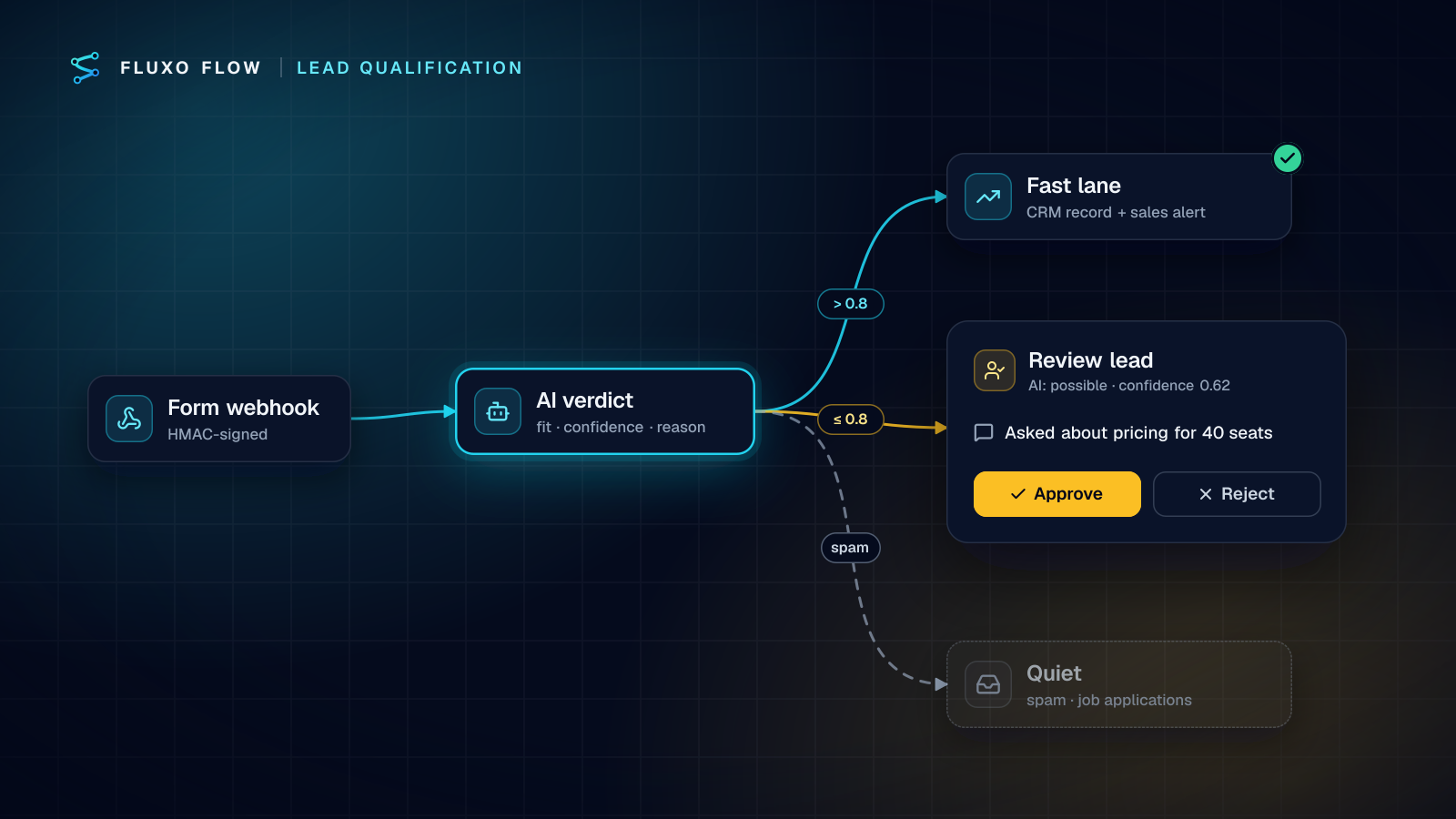
- Webhook trigger: your website or ad form posts each new lead.
- AI step: scores fit and intent from 0 to 100 with a one-line reason, using rules you write in plain English.
- Router: leads scoring 70 or more go to sales; the rest go to nurture.
- HubSpot step: creates the contact with the score and summary.
- Slack step: alerts your sales channel.
What a person still does: calls the lead, and adjusts the threshold after the first few weeks. If you'd rather not score with AI at all, delete the AI step and route on form fields. Our lead qualification walkthrough covers the scoring rules in depth.
Workflow 2: daily operations digest
Why: every team has a tracker nobody reads until something is late.
The steps (daily ops digest template):
- Scheduled trigger: weekdays at 7:30.
- Google Sheets step: reads open tasks, owners and due dates from your tracker.
- AI step: lists overdue, due-today and blocked items by owner, plus the biggest risk.
- Slack step: posts it to your operations channel.
What a person still does: acts on it. The workflow only reads your sheet; it never changes it.
Workflow 3: invoice check and approval
Why: invoices are frequent, typing them is tedious, and mistakes cost real money. That's exactly the profile that needs automation and a person.
The steps (invoice approval template):
- Webhook trigger: your accounts-payable inbox parser or an upload form sends the invoice text.
- AI step: extracts vendor, amount, due date and PO number, and flags anomalies like a missing PO or changed bank details.
- Router: invoices of 5,000 or more go to approval; smaller ones are logged.
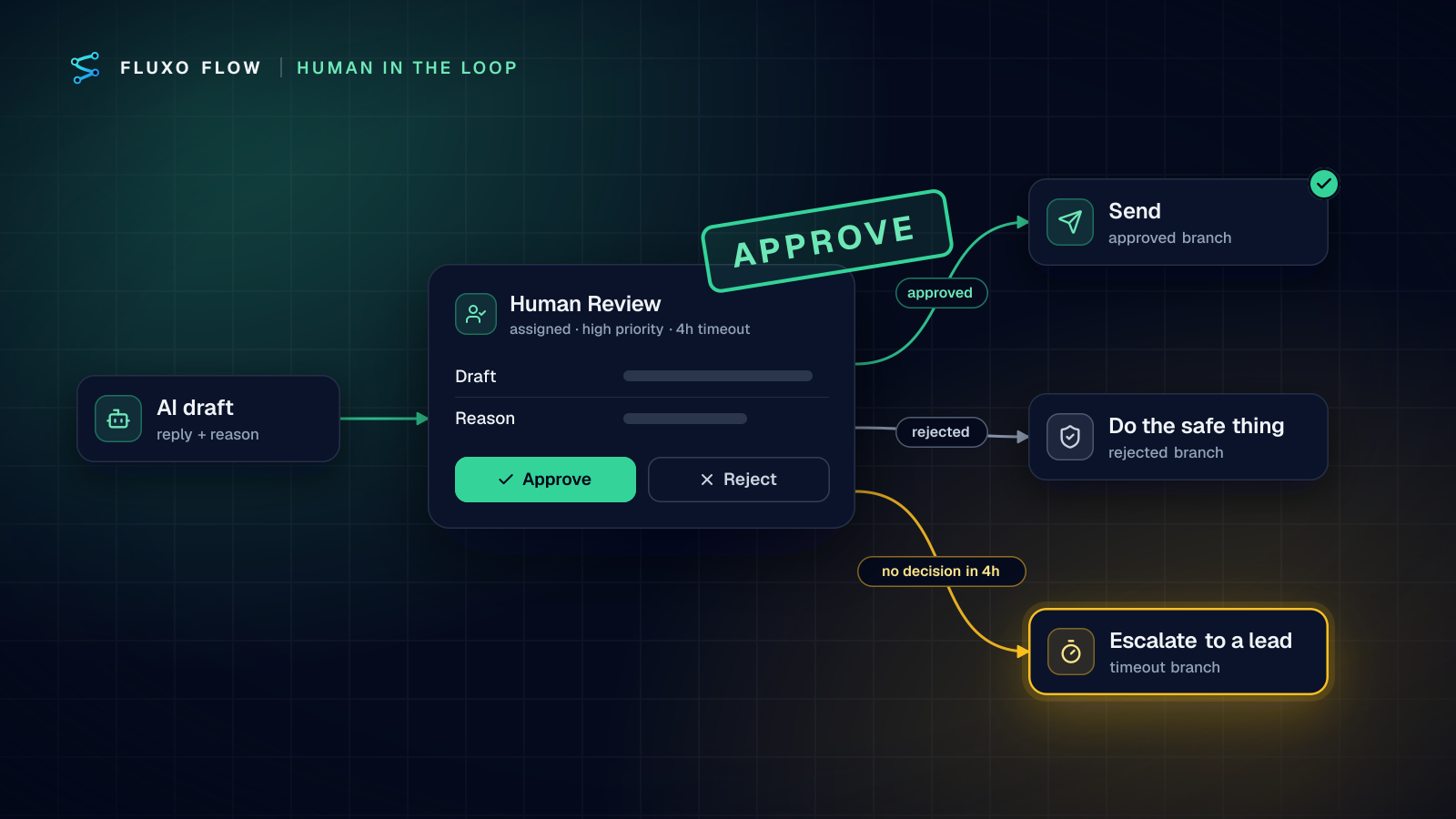
- Human Review: a manager approves or rejects in the Review Queue, with the anomalies in front of them.
- Slack step: posts approved invoices to finance.
What a person still does: approves large or unusual invoices, and makes the payment in your accounting system. The workflow never pays anything. The SBA's guidance on managing business finances is a good reminder of why: keep proper bookkeeping, and manage accounts payable and bank reconciliation deliberately (SBA, checked October 4, 2026). More detail in our guide to automating invoice approval safely.
Workflow 4: support triage
Why: reading every ticket to decide who should read it is wasted time, and urgent issues get buried.
The steps (support ticket triage template):
- Webhook trigger: your helpdesk or contact form sends each ticket.
- AI step: picks a category and an urgency ("urgent" only for outages, data loss, security issues or a blocked customer) and writes a two-line summary.
- Router: urgent tickets page on-call in Slack; everything else is logged to a Notion database for the queue.
What a person still does: answers the customer. If you want AI to draft replies too, add a Human Review step before anything is sent; nothing should reach a customer without a person reading it. Our support ticket triage guide goes deeper on categories and routing.
Workflow 5: weekly KPI report
Why: someone spends Friday afternoon building the same report.
The steps (weekly sales KPI report template):
- Scheduled trigger: every Friday.
- HubSpot step: fetches your deals.
- AI step: summarizes open pipeline, wins, stalled deals and next week's focus, using only the data provided.
- Email and Slack steps: send it to leadership and the sales channel.
What a person still does: reads it and decides. Spot-check the numbers against HubSpot for the first few weeks.
What to leave manual for now
- Rare tasks. Anything that happens less than monthly rarely pays back the build and test time.
- Judgment calls. Pricing exceptions, hiring decisions, renewals, anything where the "rules" are really experience.
- Broken processes. If three people do a task three different ways, automating it locks in the confusion. Agree on the process first.
- Moving money. Automate the checks and the paperwork; keep a person approving payments and executing them.
- Relationships. Automate the reminder to call a key client, not the call.
How pricing models change the math
Five workflows can cost very different amounts depending on how a platform meters them. Per-task and per-credit tools charge for each step a workflow runs, which is cheap for a few simple workflows and climbs with volume, longer workflows and AI steps. Flat plans charge for the number of workflows and seats. Our automation pricing comparison runs the same workflows through each model.
On Fluxo Flow, the Free plan lets you build up to 3 workflows and test them with Dry Run, but doesn't run them live. Basic ($39/mo) runs up to 15 workflows live, and AI steps run on your own provider key, billed by the provider with no markup from us. Google Sheets, HubSpot, Notion, Salesforce and Slack are live connectors; anything else with an API is reachable through an HTTP Request step. See pricing for the full plan list.
A two-week rollout plan
Days 1 and 2: score. List repeated tasks, score them with FMEE, pick your top five, and name one owner per workflow.
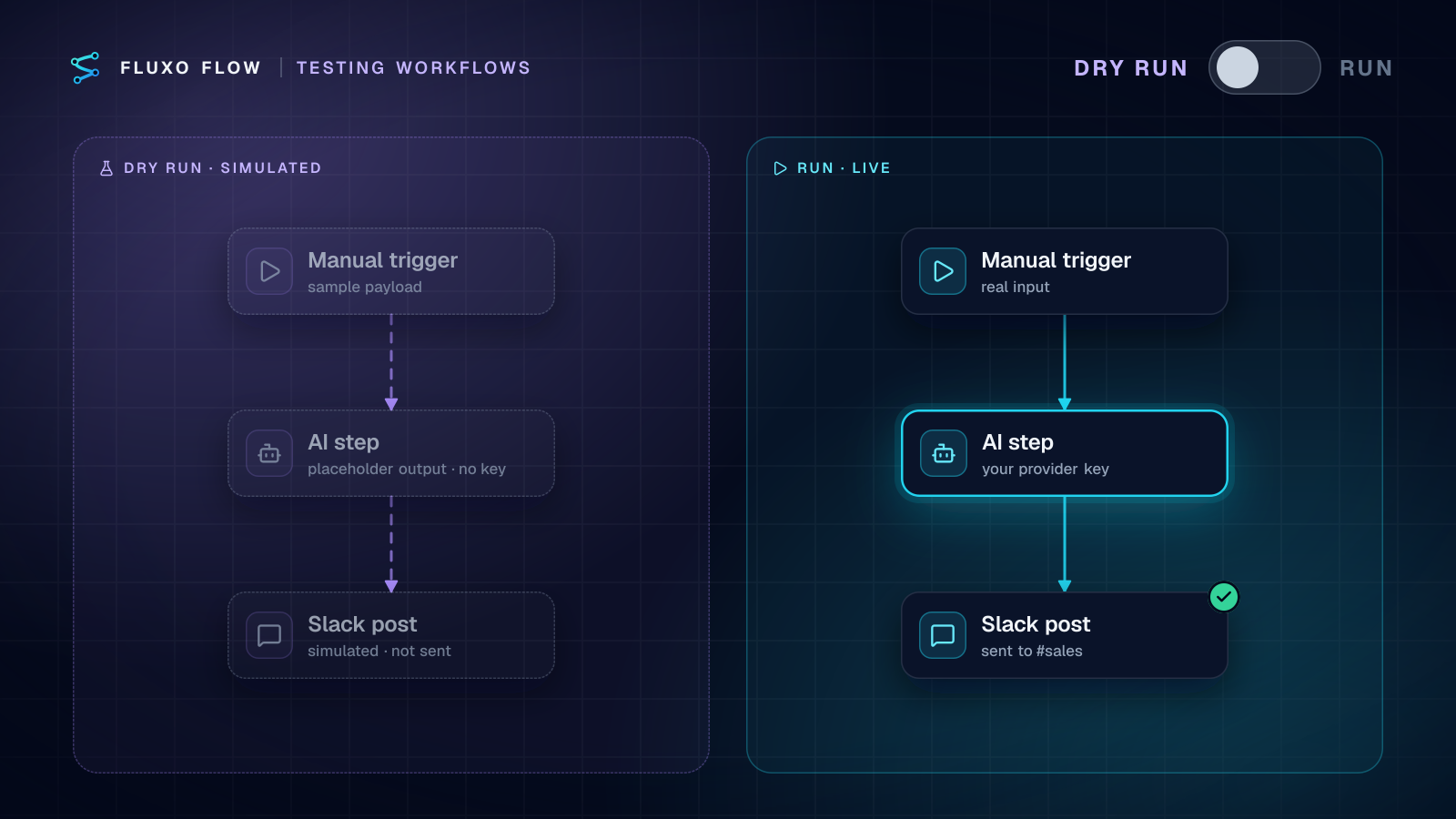
Days 3 to 5: build two. Start with the two highest-scoring, lowest-risk workflows (usually lead intake and the daily digest). Open the templates, connect your apps, and Dry Run each one with realistic sample data. Dry Run simulates every side effect and AI call, so nothing is sent; our Dry Run guide explains what to check in the trace.
Week 2, days 1 to 3: shadow mode. Run them live with outputs pointed at you: a private Slack channel, a test sheet, your own email. Compare against what the team did by hand.
Week 2, days 4 and 5: go live. Switch on the real destinations, tell the team what changed, and write down the minutes saved per week. Then build the next two, keeping the invoice workflow for when you're comfortable with Human Review.
The takeaway: don't start with the most impressive idea. Start with the most frequent, rule-based, costly-when-wrong task you have, build it from a template, test it without side effects, and keep a person on the decisions that matter. Open the five templates on the Free plan and Dry Run them; no credit card needed.
Frequently asked questions
What should a small business automate first?
Start with frequent, rule-based work where mistakes are cheap to catch: lead intake into your CRM, a daily status digest and support triage. Leave judgment-heavy or rare tasks manual, and keep a person approving anything that moves money.
How much does workflow automation cost for a small business?
It depends on the pricing model. Per-task tools are cheapest at low volume; flat plans are more predictable as volume grows. On Fluxo Flow, the Free plan builds and Dry Runs workflows, and the cheapest plan that runs them live is Basic at $39/mo, with AI billed by your own provider.
Do I need a developer to automate my business?
Not for the workflows in this guide. They start from templates on a visual canvas and use ready-made connectors; you'll need someone comfortable pasting an API token and testing carefully, not someone who writes code.
How do I test an automation before it goes live?
Run it with sample data in a test mode that simulates side effects (Dry Run in Fluxo Flow), then run it live for a week sending results only to yourself before switching on the real recipients.
Put this into practice
Build it on the canvas and Dry Run it on the Free plan, with no credit card. Run it live on a paid plan, on your own AI key.
- workflow design
- human review
- lead qualification
- dry run