Playbooks
Automate weekly client reports (that a person still approves)
Client reporting automation that clients read: a five-bullet weekly update written by AI from Google Sheets, every number checked, approved before sending.
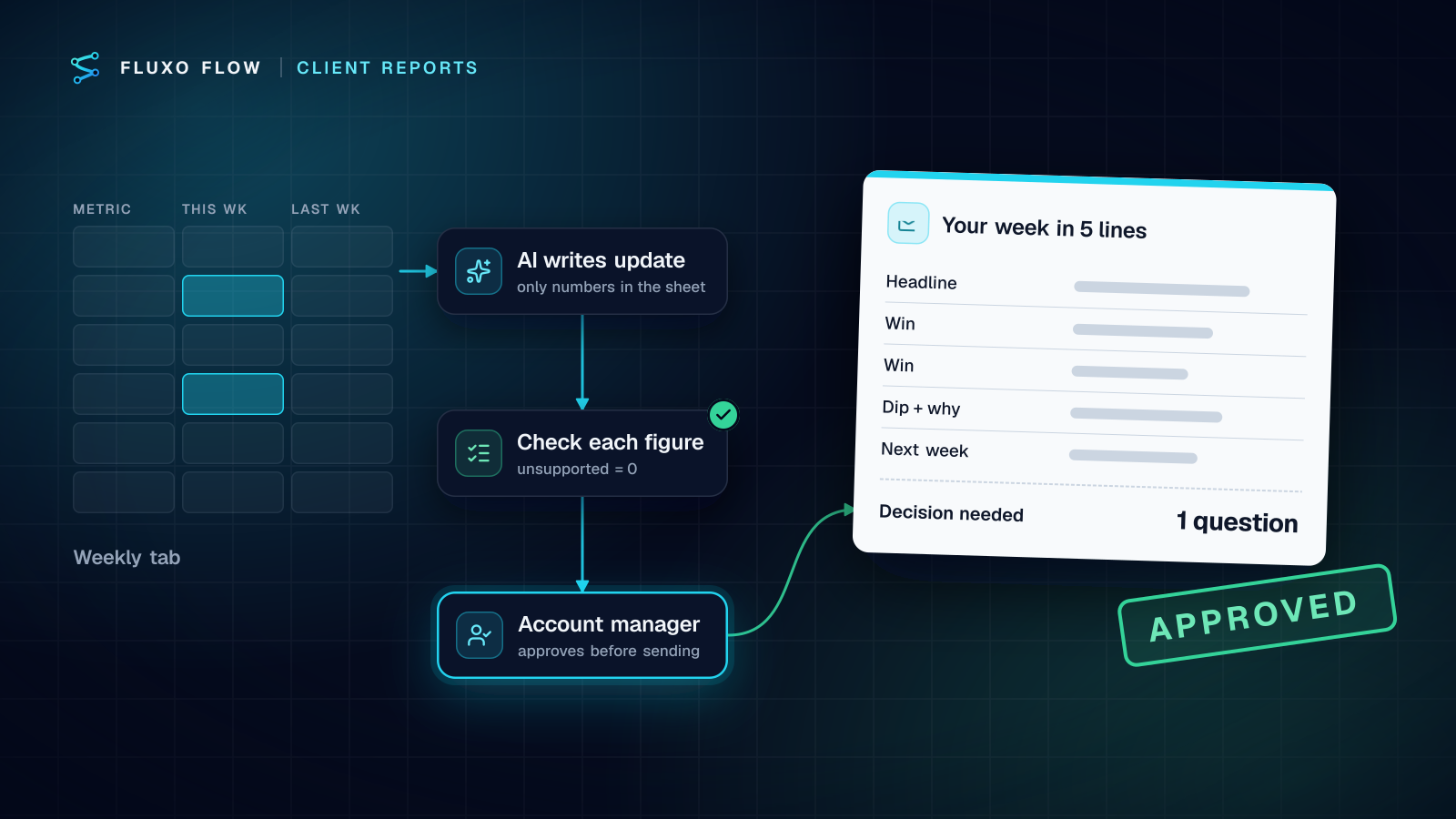
Short answer: client reporting automation works best when it produces a short written update, not another dashboard. Each Monday, a workflow reads the client's numbers from a Google Sheet, an AI step writes five bullets (headline, wins, one honest dip, next week, one question) using only the numbers in the sheet, a check confirms every figure in the draft appears in the source, and the account manager approves it in a review queue before it's emailed. Our weekly client report template builds the core of this in five steps.
The reporting tools that rank for this topic sell dashboards, and dashboards are useful for analysts. This guide argues for something different: a narrative clients actually read, with an AI safety technique (the figure check) that keeps invented numbers out of the email. It's built from the template we ship and two extra steps we add for clients where a wrong number would hurt.
Why dashboards don't get read (an opinion)
This section is opinion, from building client reporting for agencies rather than from a study. Dashboards answer "what are the numbers?" Clients usually want "is it going well, and what do you need from me?" A dashboard makes the client do the interpretation, so they skim it, or don't open it, and then ask for a call.
A five-line update does the interpretation for them and invites a reply. It also forces the account manager to have a point of view every week, which is most of what clients are paying for. Keep the dashboard as the appendix link.
The report structure clients reply to
Use the same five parts every week so clients learn where to look:
- Headline. One sentence: the most important change this week, with its number.
- Two or three changes. What moved, by how much, compared with last week or the target.
- One honest dip. Something that went down, and the most likely reason. Clients trust reports that include bad news.
- Next week. What you're doing about it.
- One question. A decision or input you need from the client. This is what gets replies.
Under 200 words. No jargon, no metric the client didn't ask for.
The workflow
The template's five steps, in order:
| Step | Node | What it does |
|---|---|---|
| 1 | Scheduled trigger | Runs every Monday at 8:00 (cron 0 8 * * 1) in the time zone you set |
| 2 | Integration (Google Sheets) | Reads last week's numbers from a range like Weekly!A1:H60 with the client's connected Google account |
| 3 | AI step | Turns the numbers into the update, told to use the numbers provided only |
| 4 | Human Review | The account manager reads the draft and approves or rejects it |
| 5 | Send Email | Emails the approved update to the client contact |
Google Sheets is a live connector in Fluxo Flow, and the read step uses the Sheets API's values endpoint, which "returns a range of values from a spreadsheet" (Google Sheets API reference, checked October 4, 2026). By default it returns formatted values, so "12.5%" arrives as the client sees it in the sheet, which helps when you check figures later. More on the connector: Google Sheets integration.
Shape the sheet first: let the sheet do the math
The most effective anti-hallucination step happens before any AI runs. Give each client a "Weekly" tab with one row per metric and these columns:
| Metric | This week | Last week | Change | Target | Note |
|---|
Compute Change with a spreadsheet formula, not in the prompt. Language models are good with words and unreliable with arithmetic; if the sheet already says the change is -8%, the AI only has to describe it. Use the Note column for context your team knows (a campaign paused, a site outage), so the dip explanation isn't invented either.
The prompt
Keep it strict and short. The template's system prompt already says to use the numbers provided only, with three highlights, one honest note on a dip, next week's focus and a 200-word limit. For the figure check below, switch the AI step to JSON output and ask for this shape:
Use ONLY numbers that appear in the sheet values below. Never calculate new numbers.
If a number you need is missing, write "n/a" and mention it in "questions".
Return JSON: {"headline": string, "changes": string[], "dip": string,
"next_week": string, "question": string, "figures_used": string[]}
figures_used lists every number the draft mentions, exactly as written. That list is what makes the next step possible.
Keeping AI honest with numbers: the figure check
This is the technique that lets an account manager trust the draft. After the writing step, add two steps (they're not in the template by default):
- A second AI step, "Check each figure". Use a small, inexpensive model at temperature 0. Give it the sheet values and the draft's figures_used, and ask: "For each figure, is it present in the sheet values exactly? Return JSON with an 'unsupported' list and an 'unsupported_count' number." Checking is a much easier job than writing, which is why a small model does it well.
- A Validator. In rules mode, require
json.unsupported_countto equal 0. The Validator routes the run down a pass or fail branch.
Then route both branches to review, differently:
- Pass: the normal Human Review step.
- Fail: a Human Review step with high priority and a prompt that lists the unsupported figures, so the reviewer knows exactly what to fix.
Why not just regenerate until it passes? Because a model that invented a number once may invent a different one next time. A person looking at a highlighted figure takes ten seconds and fixes the root cause (often a missing row in the sheet).
The extra AI step runs on your own provider key like every AI step in Fluxo Flow, with no markup from us, and it's cheap: it reads a short list, not a report. A server run also stops at $2 of estimated AI cost, so a misconfigured prompt can't run up a large bill.
Approval and sending
The Human Review step pauses the run until someone decides. In the Review Queue, the account manager can approve, reject, or approve with edits, and the run resumes right away. A few practices we'd keep:
- Assign reviews per client so each account manager sees their own queue. Review notifications appear in the app (there are no email alerts for reviews yet), so build the Monday check into the account manager's routine.
- Set a timeout that suits your send window, so a report doesn't sit unnoticed until Thursday.
- Read before bulk-approving. Bulk actions exist for a reason, but client reports are where one careless approval costs trust.
The approved text goes out through a Send Email step to the client contact. If you prefer sending from the account manager's own mailbox, email the approved draft to them instead and let them forward it; Gmail sending via the Gmail connector is beta, and reading inboxes is not available yet. For the reasoning behind where to put approvals, see our human-in-the-loop guide and Human Review.
Scaling to 30 clients
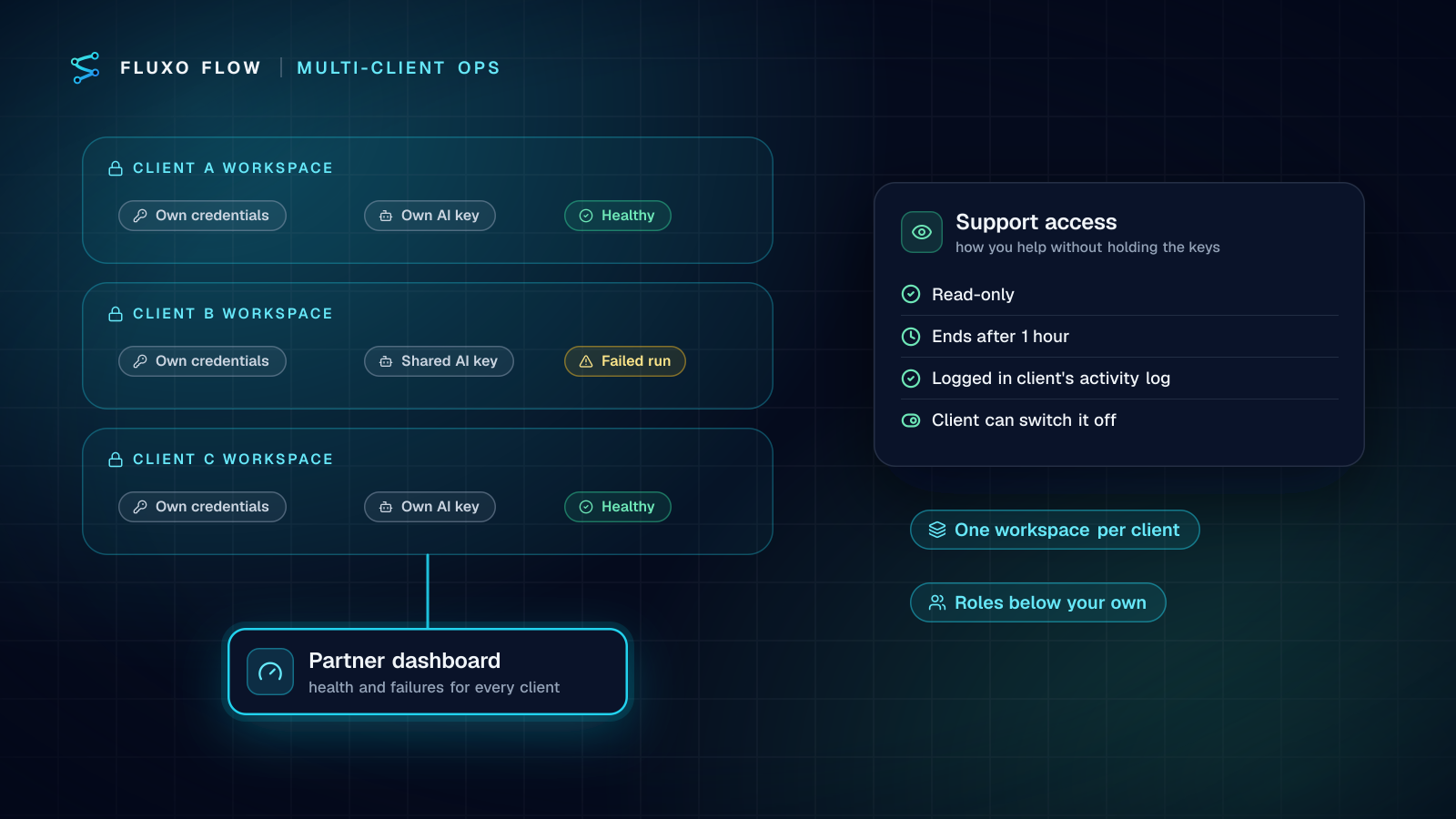
The template's own advice is the simplest: duplicate the workflow per client and point each copy at that client's sheet and email. That's fine up to your plan's workflow limit (25 on Pro, 60 on Business), and it's the natural setup if every client has its own workspace, as we recommend in our multi-client operations guide.
If your clients share one workspace, a dispatcher pattern keeps maintenance to one workflow:
- A "Clients" sheet with one row per client: name, spreadsheet ID, range, contact email, reviewer.
- A dispatcher workflow on the Monday schedule reads that sheet and loops over the rows.
- For each client, a Webhook Call starts the report workflow through its Webhook trigger, passing that client's row as the payload.
- The report workflow reads the spreadsheet ID and email from its input instead of hard-coded values.
Each client then gets its own run, its own trace and its own review item. Avoid doing all 30 reports inside one run (or through a Sub-workflow step, which runs inside the parent run): a server run stops after 50 seconds, and 30 AI-written reports won't fit. Dry Run the dispatcher with two test rows before you point it at real clients.
The takeaway: automate the writing, not the judgment. Put the math in the sheet, make the AI cite its figures, check them automatically, and keep an account manager's approval between the draft and the client's inbox. Start with the weekly client report template, Dry Run it on one client's sheet, and add the figure check before you send the first real report. The Google Sheets to email report guide lists the exact steps and settings, and more workflows agencies start with are on automation for agencies.
Frequently asked questions
Can AI write client reports accurately?
Yes, if it never does the math. Put the calculations in the spreadsheet, tell the AI to use only the numbers provided, check every figure in the draft against the sheet, and have a person approve the report before it's sent.
What should a weekly client report include?
Five things: a one-line headline, two or three changes with numbers, one honest note on anything that dipped and why, what you're doing next week, and one question or decision for the client.
Can I automate reports for many clients at once?
Yes. Either duplicate the report workflow per client, or keep one report workflow that a Monday dispatcher starts once per client with that client's sheet and contact, so every client gets its own run and its own approval item.
Does the client report get sent without anyone checking it?
Not in this setup. The workflow pauses at a Human Review step and only emails the client after the account manager approves it in the Review Queue.
Put this into practice
Build it on the canvas and Dry Run it on the Free plan, with no credit card. Run it live on a paid plan, on your own AI key.
- agencies
- AI
- human review
- reliability