Playbooks
Running automations for many clients: workspaces, keys and access done right
How to manage automations for multiple clients safely: one workspace per client, client-owned credentials, the right roles, monitoring and clean offboarding.
Short answer: to manage automations for multiple clients safely, give every client its own workspace, keep credentials in the client's name (their OAuth connections, their AI key), grant the minimum role each person needs, watch failures from one place, change workflows only through versions and a Dry Run, and offboard with an export and revoked access. None of this is exciting. All of it is what separates an agency that runs 20 clients calmly from one that spends Mondays firefighting.
Nobody writes this list down, so here it is: the operating hygiene we'd put in place before taking on client number five, organized into six areas, with a printable 20-point checklist at the end. The specifics reference Fluxo Flow features where they exist; the principles apply on any platform.
Isolation: one workspace per client
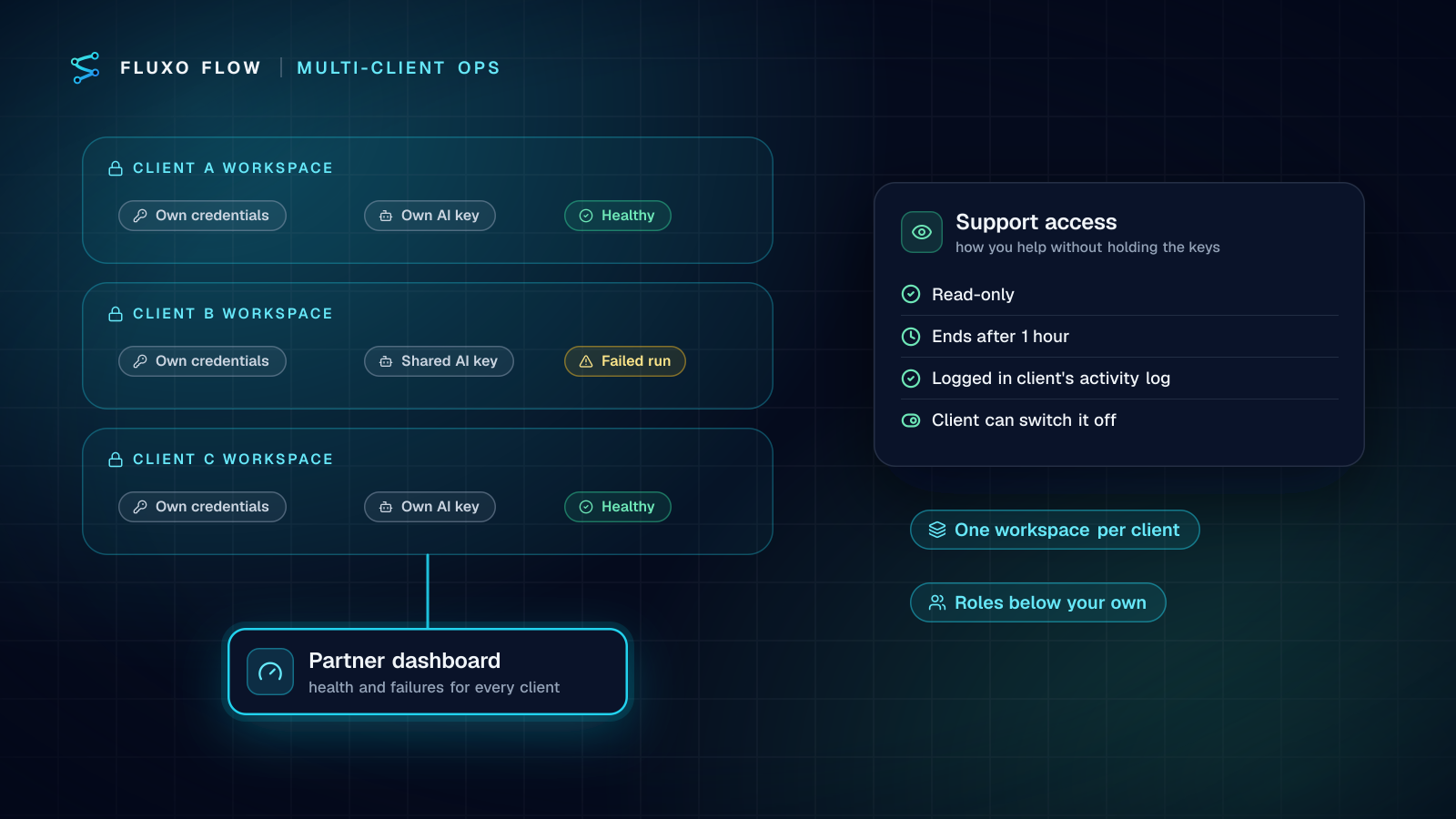
The first decision shapes every other one. Put each client in its own workspace, with its own members, credentials, AI keys, workflows and run history.
Why it matters:
- Blast radius. A wrong credential, a runaway loop or a compromised account stays inside one client.
- Clean billing and reporting. Each workspace's runs and AI usage belong to one client.
- Clean exits. When a client leaves, you export one workspace instead of untangling shared workflows.
Resist the shortcut of a single "agency" workspace with workflows named "ACME: lead alert". It works at three clients and becomes a liability at ten, mostly because credentials start getting reused across clients.
In Fluxo Flow, one login can belong to several workspaces and switch between them from the top bar; each workspace has its own members and plan. On the Partner plan, you create a workspace per client from the partner dashboard and choose its plan level.
Credentials and AI keys
Client-owned credentials
Connect each client's apps with an account the client owns: their HubSpot, their Google Workspace, their Slack. If the engagement ends, the client revokes one connection and you're out. If you connect with your personal agency login instead, you've created a dependency the client can't see and you can't easily unwind.
Store API keys and tokens in the platform's credential vault, never in a step's body or a shared doc. In Fluxo Flow, OAuth tokens and vault secrets are encrypted at rest and never shown again in full after saving; only owners and admins see a short preview.
OWASP's secrets guidance is short and worth following: apply least privilege, so people and services can reach only the secrets they need, and "regularly rotate secrets so that any stolen credentials will only work for a short time" (OWASP Secrets Management Cheat Sheet, checked October 4, 2026).
AI keys: shared or per-client
| Per-client key | Shared agency key | |
|---|---|---|
| Who pays the provider | The client, directly | You, then you re-bill |
| If the key leaks | One client affected | Every client affected |
| Cost transparency | Built in | Needs usage reports per client |
| Setup speed | Slower (client creates an account) | Fast |
| Best for | Production | Pilots and demos |
On Fluxo Flow's Partner plan you can set one shared key that client workspaces fall back to, and any client can add its own key, which then takes priority. Every AI step runs on someone's own key; we add no markup. Separately, a server run stops when its estimated AI cost reaches $2, which limits what a runaway loop can spend.
The OWASP Top 10 for LLM Applications (2025) is useful framing here: it lists Sensitive Information Disclosure (LLM02), Excessive Agency (LLM06) and Unbounded Consumption (LLM10) among its ten risks (OWASP GenAI, checked October 4, 2026). Per-client keys, narrow tool access for AI agents and cost caps map directly onto those three.
Roles for your team and the client's
Map people to roles, not to "admin by default". Fluxo Flow has seven roles; here's how we'd assign them in a client workspace:
| Person | Role | Why |
|---|---|---|
| Client's executive sponsor | Owner | They own the workspace and billing (on direct plans) |
| Your lead builder | Admin | Manages integrations, credentials and members |
| Your other builders | Automation Editor | Builds and edits workflows; can't manage members |
| Client's ops lead | Operations Manager | Approves runs, manages workflows, sees billing |
| Client staff who approve items | Support Agent | Read-only on runs, plus deciding reviews in the Review Queue |
| Anyone who just needs to look | Viewer | Read-only everywhere |
Two platform rules help: you can only grant roles below your own (so only the owner can make someone an admin), and permissions come from the role, with no per-person overrides, which keeps access easy to review. Turn on two-factor sign-in for everyone with Admin or above. More on roles in team, roles and seats.
Support access instead of shared logins
When you need to look inside a client workspace you're not a member of, use logged support access, not a borrowed password. On our Partner plan, support access opens a client's workspace read-only for 1 hour, every visit is recorded in the client's activity log, and the client can turn support access off.
Monitoring and incident response
Decide who hears about failures before the first one happens.
- Failure notifications. In Fluxo Flow, when a scheduled or webhook run ends in an error, owners, admins and roles down to Automation Operator get an in-app notification. Review alerts are in-app only for now (no email), so someone must actually look at the bell daily.
- One view across clients. The partner dashboard shows workspace health and failed runs for every client without opening each workspace.
- Pipe failures to your own channel. Outbound webhooks are signed and fire when runs finish, fail or need a review, so you can send failures into your agency's alerting.
- Trends. Run volume and success rate over 7, 30 or 90 days show a slow degradation (a flaky API, a drifting prompt) before the client notices.
A simple incident routine: acknowledge within your care-level response time, open the failed run's trace, fix or pause the workflow, tell the client what happened in two sentences, and note it in the monthly report. See run history and observability for what each trace records.
Change management
Most incidents we've seen in client automations came from a change, not from an outage.
- Every save is a version. Restore an older one (restoring creates a new version, so it can be undone) or export it as a file.
- Dry Run every change. Dry Run simulates the whole workflow with sample data, no side effects and no AI cost. Our Dry Run guide covers what to check.
- Compare runs. After a change, compare a new run with one from before, step by step.
- Change log. Note who changed what and why. The workspace activity log helps; it's kept for 90 days on Basic and 365 on Pro.
- Client sign-off for behavior changes. A new threshold or a new approval rule changes the client's process. Get a yes in writing.
Offboarding a client
Plan the exit on day one, then follow it when the day comes:
- Export every workflow (Fluxo Flow exports .fluxo.json files) and, as an owner or admin, the full workspace export (a zip with run history as CSV and JSON, the activity log, members and more).
- Hand over or transfer ownership of the workspace, or let the client move to a direct plan. On the Partner plan, if you stop being a partner, clients get a transition period to export or move.
- Have the client revoke any OAuth grants and API keys your team used, and rotate shared secrets.
- Remove your team members from the workspace.
- Send a dated handover note listing what was exported and what was revoked.
Printable checklist (20 points)
Isolation
- One workspace per client, no shared "agency" workspace for client work.
- Workspace plan level matches the client's workflow count and schedule needs.
Credentials and keys
- Every connection uses a client-owned account.
- Secrets live in the vault, never in step bodies or documents.
- Production runs on the client's own AI key; any shared key is tracked per client.
- A rotation date is set for every API key and shared secret.
Access
- Every person has the lowest role that lets them do their job.
- Client approvers are Support Agents, not Admins.
- Two-factor sign-in is on for Admins and Owners.
- Support access is logged and time-limited, never a shared password.
Monitoring
- A named person checks failure notifications every business day.
- Failures also reach your agency channel through signed outbound webhooks.
- Review-queue items have an agreed response time.
- Success rates are reviewed monthly per client.
Change management
- Every change is Dry Run before it goes live.
- Behavior changes have written client sign-off.
- Each change is noted with who, what and why.
Offboarding
- Exports (workflows and workspace) are taken and stored.
- Client revokes your access and rotates shared secrets.
- A dated handover note is sent and filed.
The takeaway: isolation, ownership and least privilege do most of the work; monitoring and change discipline do the rest. If you're setting this up for a growing client list, the Partner program gives you a workspace per client, shared or per-client AI keys and logged support access, and our guides on white-label costs and pricing automation services cover the business side. For our own security practices and limits, see security.
Frequently asked questions
Should each client have its own workspace?
Yes. A workspace per client keeps credentials, run history, members and AI usage separate, so a mistake or a breach in one client's setup can't reach another's, and offboarding is a clean export.
Should an agency use one AI key for all clients?
Per-client keys are safer and make costs transparent, because each client's provider bills the client and a leaked key affects one account. A shared key is fine for pilots if you track usage per client and can rotate it quickly.
How do I give clients access to approve automations without letting them edit workflows?
Give them a role that can decide reviews but not edit. In Fluxo Flow, the Support Agent role has read-only access to runs and can approve or reject items in the Review Queue.
What should I do when a client leaves?
Export their workflows and data, hand over credentials ownership (or have the client revoke the tokens you used), remove your team's access, and keep a dated record of what you handed over.
Put this into practice
Build it on the canvas and Dry Run it on the Free plan, with no credit card. Run it live on a paid plan, on your own AI key.
- agencies
- security
- reliability
- workflow design