Playbooks
How to migrate from Zapier (or Make, or n8n) without downtime: a checklist
Migrate from Zapier, Make or n8n without downtime: an inventory sheet, risk tiers, import vs rebuild, a parallel-run protocol and a cut-over checklist.
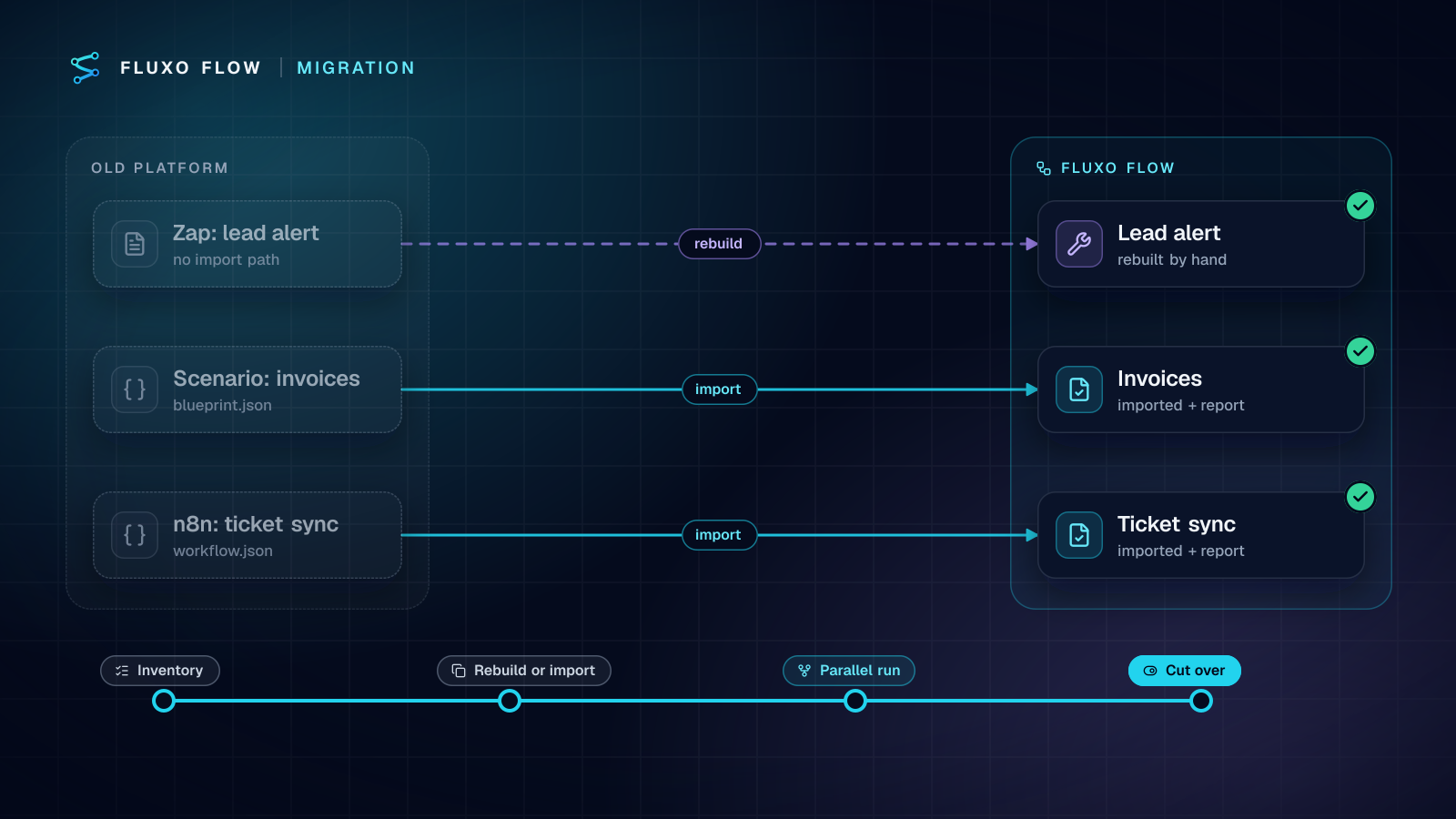
Short answer: to migrate from Zapier without breaking anything, move one workflow at a time through six steps: inventory every Zap, sort them by risk, rebuild or import each one, run old and new in parallel and compare outputs, cut over (switch webhook URLs, turn on schedules, turn the old one off), then decommission after a quiet period. Zapier has no export format other platforms read, so Zaps are rebuilt by hand. Make blueprints and n8n workflow JSON can be imported into some tools, including ours, with a conversion report and credentials reconnected by hand.
Most "how to migrate" posts are a pitch with a screenshot. This one is the process we'd use for a client with 10 to 60 live workflows: an inventory sheet with columns you can copy, a risk tier per workflow, a parallel-run protocol and a cut-over checklist. It works whichever platform you're moving to. Where we mention Fluxo Flow specifics, they're labeled.
Step 1: build the inventory
You can't migrate what you haven't listed. Start a spreadsheet with one row per workflow and these columns:
| Column | Why it matters |
|---|---|
| Name and link | So anyone can open the original |
| Platform | Zapier, Make, n8n or other |
| Trigger type | Webhook, schedule, or app event (polling or instant) |
| Steps | Count of action steps, plus any loops |
| Apps touched | Every system it reads from |
| Writes to | Every system it changes. This column sets the risk |
| Runs per month | From run history; decides how long a parallel run needs |
| Uses AI? Has approvals? | These steps need the most rework |
| Credentials | Which accounts and API keys it uses |
| Owner | The person who knows what "correct" looks like |
| Failure cost | 1 = annoying, 2 = someone has to fix data, 3 = customer or money impact |
| Decision | Retire, import or rebuild |
Where to get the data:
- Zapier: Team and Enterprise accounts can export Zaps as a JSON file. It's documented for moving Zaps between Zapier accounts, so treat it as a readable record of every step rather than something to import elsewhere (Zapier help, checked October 4, 2026). For volume, Zap history exports up to 5,000 runs at a time as CSV or JSON (Zapier help).
- Make: open each scenario and use the three-dot menu, then Export blueprint. You get a .json file with the modules, settings and mapped values, but no connections (Make help).
- n8n: the workflow menu's Download option saves the workflow as JSON. The file includes credential names and IDs (not the secrets), so tidy them before sharing it (n8n docs).
In our experience the inventory alone pays for itself: most accounts carry workflows nobody owns, and some that haven't run in months.
Step 2: tier every workflow by risk
Sort the sheet into four tiers. The tier decides how much ceremony each workflow gets.
| Tier | What qualifies | How to move it |
|---|---|---|
| 0: Retire | No runs in 90 days, no owner, or duplicated elsewhere | Turn it off, keep the export, don't migrate |
| 1: Low | Internal notifications and read-only reports | Rebuild or import, test once, cut over the same day |
| 2: Medium | Writes to internal systems (CRM, sheets, project tools) | Parallel run for 3 to 5 business days |
| 3: High | Anything customer-facing or touching money | Parallel run for a week or more, plus an approval step for the first live runs |
Move Tier 1 first. You'll learn the new platform on workflows where mistakes are cheap, and your Tier 3 rebuilds will be better for it.
Step 3: rebuild or import
From Zapier: rebuild
There's no import path from Zapier to other platforms, so rebuilding is the plan. It's usually faster than it sounds, because the hard part (deciding what the workflow should do) is already done. Map the pieces:
- Trigger: a Webhook trigger (with a secret) for anything that can call a URL, a Scheduled trigger for time-based Zaps, or an app event trigger from a connector. In Fluxo Flow, app event triggers poll or receive instant webhooks where the app supports it; Google Sheets, HubSpot, Notion, Salesforce and Slack are live connectors and the rest are in beta.
- Paths and Filters become a Router (in Fluxo Flow, the first matching route wins, with a default route).
- Formatter steps become a Transformer.
- AI by Zapier becomes an AI step on your own provider key.
- Human in the Loop becomes a Human Review step.
From Make: import the blueprint
In Fluxo Flow, go to Workflows, then Import, and drop the blueprint file. Webhooks, HTTP calls, Routers and Filters, Iterators, Set variable, OpenAI and Claude, Slack, email, Google Sheets, HubSpot, Notion and Salesforce modules are converted; anything else becomes a placeholder step to rebuild. The preview shows a report for every module before you save. Instant webhooks get a new URL; "Watch" triggers become a 15-minute schedule unless you have the app call the webhook instead.
From n8n: import the workflow JSON
Same Import screen. Webhook, Schedule, HTTP Request, IF, Switch, Filter, Set, Loop, AI Agent, OpenAI and Anthropic, Slack, Gmail, Send Email, Google Sheets, HubSpot, Notion and Salesforce nodes are converted. Code nodes come in as placeholders with the code kept in a note: most of them reshape data, which a Transformer or Router handles, and the rest can call your own endpoint with an HTTP Request step. Tools attached to an AI agent aren't converted, so add those steps after the AI step.
Either way, credentials never move. Reconnect each account from the setup checklist, and use the opportunity to replace personal tokens with service accounts.
You can do all of this on our Free plan: import, fix and Dry Run a workflow with sample data. The Free plan doesn't run anything live ("Upgrade to run workflows live. The Free plan can build workflows and test them with Dry Run (sample data, nothing is sent)."), which is exactly what you want during a migration.
Step 4: run old and new in parallel
A parallel (shadow) run is the step that prevents downtime. The old workflow keeps doing the real work; the new one runs on the same inputs and writes somewhere harmless.
Feed both. Many sources allow only one webhook URL. The simple fix: add one step at the end of the old workflow that forwards the original payload to the new workflow's webhook. On Zapier, that's one extra task per run for the length of the parallel run, which is a fair price for safety.
Neutralize side effects in the new workflow. Point writes at a test sheet, a sandbox CRM or a private Slack channel. In Fluxo Flow, Dry Run simulates every side effect, but a parallel run needs live inputs, so use a paid plan (from $39/mo) with safe destinations. For Tier 3, put a Human Review step before each customer-facing action and reject anything that looks wrong.
Compare outputs, not just status. Every day, take 10 to 20 runs and compare field by field: the record created, the message text, the amount. Green checkmarks only tell you nothing crashed. Fluxo Flow's run history shows each step's input and output, and you can compare two runs side by side.
Exit criteria. Write them before you start: for example, "five business days and 50 runs with identical outputs, zero unexplained differences".
Step 5: cut over
Do it in a quiet window, one workflow at a time:
- Point the source (form, app webhook, API caller) at the new webhook URL, or turn on the new schedule. In Fluxo Flow, triggers only fire after you explicitly activate the workflow.
- Switch the new workflow's destinations from test to real.
- Turn the old workflow off. Don't delete it.
- Watch the first 48 hours. Fluxo Flow sends an in-app notification when a scheduled or webhook run fails; check the run history at least twice a day anyway.
- Note the cut-over date in the inventory sheet.
Step 6: decommission
After two weeks without issues (a full month for Tier 3):
- Keep the final export (Zap JSON, blueprint or n8n JSON) in a shared folder with the inventory.
- Revoke the old platform's connections and API keys in each connected app. Forgotten OAuth grants are a quiet security risk.
- Downgrade or cancel the old plan only when every row in the sheet says "moved" or "retired".
Common traps
- Router semantics differ. Make processes a router's routes one after another ("processed sequentially, not in parallel", per Make help), and its fallback route only takes data that fits no other route, so one bundle can travel several routes. In Fluxo Flow, the Router takes the first match. Check route order after importing.
- Duplicates during overlap. If both workflows write to the same system at cut-over, you'll create records twice. Use a Memory step keyed on the source record ID to skip anything already processed; our guide to preventing duplicate records covers the patterns.
- Time zones. Platforms store schedule time zones differently. Set each schedule's time zone explicitly on the new platform and recheck any date math in your steps.
- Polling vs instant. A trigger that polled every 15 minutes may become instant (or the reverse). Downstream steps that assumed batches can behave differently.
- Big loops. A Fluxo Flow server run stops at 50 seconds or when estimated AI cost reaches $2. A loop that processed 2,000 rows in one Zap run belongs in smaller batches.
- Missing connectors. Our catalog is much smaller than Zapier's or Make's. If a workflow depends on an app we don't connect to and the app has no API, leave that workflow where it is.
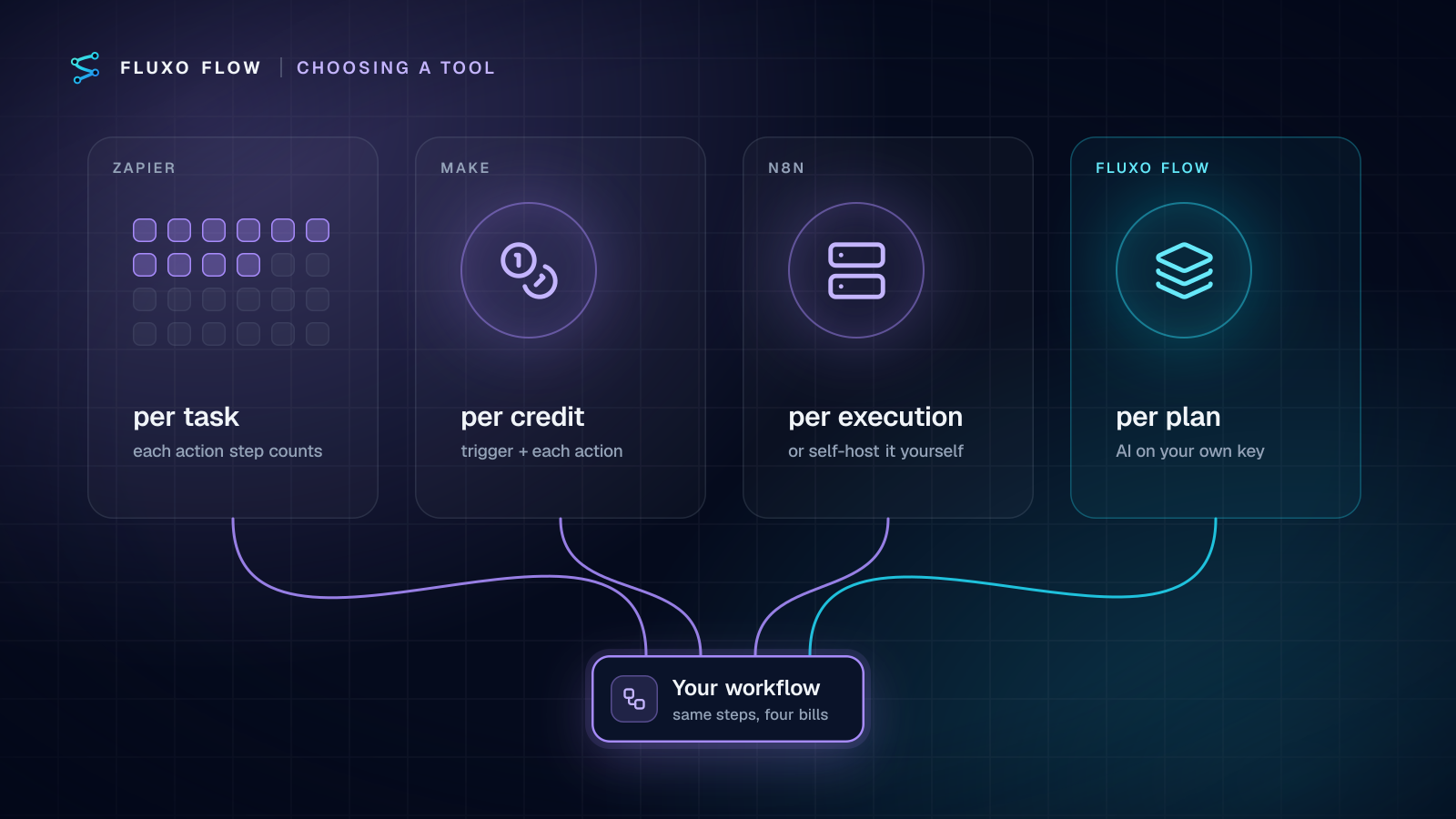
If cost is what's driving the move, read Zapier pricing explained and automation pricing compared first, so you know which workflows are worth moving at all. The platform-specific steps are also on our comparison pages: vs Zapier, vs Make and vs n8n. For a deeper look at testing before go-live, see Dry Run vs live run.
The takeaway: a migration is an inventory problem first and a building problem second. List everything, retire what nobody needs, move the low-risk workflows to learn the tool, and give anything that touches customers or money a proper parallel run. Start by importing one Make blueprint or n8n workflow on the Free plan and reading its conversion report; it tells you quickly how much of your account will move cleanly.
Frequently asked questions
Can you export Zaps from Zapier?
Yes, on Team and Enterprise accounts, as a JSON file. Zapier documents it for moving Zaps between Zapier accounts, so other platforms can't import it; use it as your inventory and rebuild (Zapier help, checked October 4, 2026).
Can I import Make scenarios or n8n workflows into another tool?
Fluxo Flow imports Make blueprints and n8n workflow JSON on a best-effort basis: common steps are converted, anything else becomes a placeholder, and a report lists every step. Credentials are never copied; you reconnect them.
How long does it take to migrate from Zapier?
Plan per workflow, not per account. Low-risk notification workflows can move in an afternoon; anything that touches customers or money should get about a week of parallel running before you switch it over.
Do credentials move when you export a Make blueprint or n8n workflow?
No. Make blueprints don't include connections, and n8n exports include credential names and IDs but not the secrets (Make, n8n, checked October 4, 2026).
Put this into practice
Build it on the canvas and Dry Run it on the Free plan, with no credit card. Run it live on a paid plan, on your own AI key.
- Zapier
- Make
- n8n
- choosing a tool
- testing
- reliability