Playbooks
Connecting Stripe to QuickBooks or Xero: when to sync, when to automate
Stripe to QuickBooks or Xero: when a ledger sync app is the right tool, which invoice and payment workflows to automate, and why payouts aren't payments.
Connecting Stripe to QuickBooks or Xero is really two different jobs, and most of the frustration comes from using one tool for both. Job one is ledger sync: every charge, fee, refund and payout lands in the right accounts so your books reconcile. Job two is workflow: when something specific happens (an invoice is paid, a new customer signs up, a payment fails), do the right next thing and tell the right person.
Short answer: for full ledger sync, use a dedicated Stripe sync app or whatever your accountant already supports; it's a solved, accounting-specific problem. Use workflow automation for the second job: record payments against the invoices they settle, keep customers in step across systems, and route anything unusual to a person before it touches the books. This guide shows where that line sits, four workflows worth building, and the reconciliation basics that trip people up.
A note on status before we start: in Fluxo Flow the Stripe connector is in beta, and so are QuickBooks Online (beta) and Xero (beta). They work, but test with a sandbox company first and keep a person in the loop for anything that posts to your ledger.
Sync vs workflow: a decision table
| You want… | Ledger sync app | Workflow automation |
|---|---|---|
| Every Stripe transaction (fees, refunds, disputes, payouts) in the ledger | Yes, this is what they're for | No |
| Payouts reconciled against bank deposits | Yes | No: use the payout report or your sync app |
| A paid Stripe invoice to mark the matching invoice paid in your books | Sometimes, depending on the app | Yes: find the invoice, match the amount, record the payment |
| New Stripe customers created in QuickBooks or Xero, without duplicates | Sometimes | Yes: find first, then create |
| A person to approve anything that doesn't match | Rarely | Yes: Human Review |
| Slack alerts and follow-up tasks for failed payments | No | Yes |
| Logic specific to your business (deal won → invoice, amount thresholds) | No | Yes |
If most of your ticks are in the first column, stop here and talk to your bookkeeper about a sync app. If they're in the second, read on. Plenty of teams use both: the sync app keeps the ledger whole, and workflows handle the exceptions and the people.
Four workflows worth automating
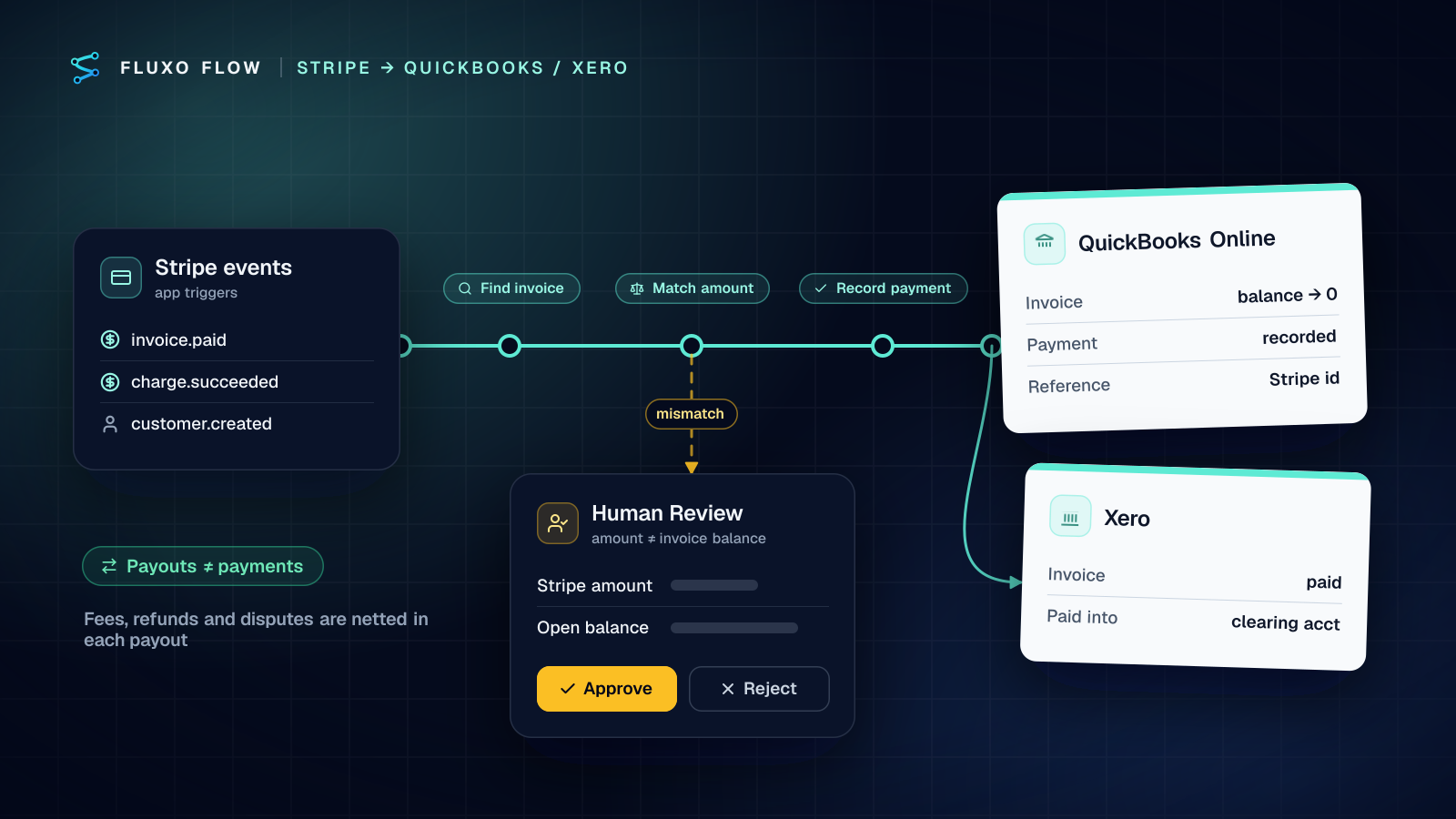
1. Stripe payment → record it against the right invoice
This is the most common pattern for service businesses that invoice from their accounting system and collect through Stripe (a payment link or a hosted invoice page).
- Trigger: Stripe Invoice paid or New successful payment. Each comes in two forms: polling, and an instant version that adds a webhook endpoint to your Stripe account (it needs "Webhook Endpoints: Write" on your restricted key, and Stripe allows 16 endpoints per account).
- Transformer: pull your invoice number from the payment's description or metadata, and convert the amount. Stripe sends amounts in cents (
125000is $1,250.00); QuickBooks and Xero expect dollars. - Find the invoice: QuickBooks Find an invoice (by number, returns balance and status) or Xero Find an invoice.
- Router: if the converted amount equals the open balance, continue. If not (partial payment, overpayment, wrong currency, no invoice found), go to Human Review.
- Record the payment: QuickBooks Record a payment against the invoice id, with Deposit to set to the account your accountant chose (or left empty for Undeposited Funds), or Xero Record a payment with Paid into set the same way. Put the Stripe charge id in Reference so anyone can trace it back.
- Dedupe: add a persistent Memory step keyed on the Stripe event id before step 5. Webhooks and polling both deliver at least once; duplicate payments are the worst kind of duplicate.
2. New Stripe customer → customer or contact in your books
Trigger on Stripe New customer, then find before you create: QuickBooks Find a customer by email, or Xero Find a contact. Only if nothing comes back, use QuickBooks Create a customer or Xero Create or update a contact.
Watch the uniqueness rules. QuickBooks requires a unique display name and rejects duplicates with a clear error; Xero requires unique contact names. Two different customers both called "Alex Kim" will collide, so build the display name from name plus email domain or company when you have it.
3. Failed payment → Slack alert and a follow-up task
Start from the Stripe Invoice payment failed trigger (Stripe's invoice.payment_failed event: a declined card, a failed automatic retry or no saved payment method). It hands the next steps the customer's email, the amount still owed, how many attempts Stripe has made, when it will retry next and the hosted invoice link the customer can pay from. For one-off payments that aren't invoices, use Payment failed (payment_intent.payment_failed), which includes the decline code and Stripe's reason, such as insufficient_funds. Both come in a polling version that reads Stripe's event log and an instant version, like the other Stripe triggers, and both are beta. Each event id fires once, but keep a Memory step if a second workflow could act on the same event. A Slack post tells the account owner, and a HubSpot task or Notion item makes sure someone follows up. A Router on the attempt count can stay quiet on the first failure and step in on the last retry. Don't let an AI write to the customer here unless a person approves it; dunning emails are a relationship, not a notification.
4. Deal won → draft invoice → review → send
When a deal closes in your CRM, create the invoice as a draft (QuickBooks Create an invoice, Xero Create an invoice with status Draft, or Stripe Create a draft invoice plus Add an invoice line), then pause on a Human Review step that shows the customer, line items, amount and terms. Approve, and the next step sends it (QuickBooks Send an invoice, Xero Email an invoice, Stripe Finalize an invoice then Send an invoice). Reject, and the draft stays a draft with a note.
This is the same review-before-posting pattern as invoice approval automation and its template, applied to receivables instead of payables.
Reconciliation basics: payouts are not payments
This is where workflow builders most often get the books wrong, so it deserves its own section.
A customer pays you $1,000 through Stripe. Stripe takes its fee. Days later, a payout lands in your bank, and that payout contains this payment plus other payments, minus fees, refunds and any disputes. The deposit on your bank statement matches none of your individual payments.
Stripe's payout reconciliation report exists for exactly this: it "helps you match the payouts you receive in your bank account with the batches of payments and other transactions that they relate to", and its itemized CSV lists every payment, refund, dispute and fee included in a payout (checked October 4, 2026).
What that means for your workflows:
- Record payments at gross against invoices; don't record payouts as payments. The payout is a transfer of a batch, not revenue.
- Don't try to post fees from a workflow unless your accountant has designed that entry. Fees, payouts and clearing accounts are exactly what sync apps and accountants handle well.
- Ask where payments should land. Many accountants use a clearing account for Stripe so the payout can be matched against it. In Xero you pick the account in Paid into. In QuickBooks you pick it in Deposit to on Record a payment, which lists your bank and other current asset accounts. Leave it empty and QuickBooks uses Undeposited Funds, which suits grouping payments into one deposit that matches a payout. Ask your accountant which account to use, and check the first few payments in the sandbox before you go live.
- Keep the paper trail. The IRS says you can use "any recordkeeping system suited to your business that clearly shows your income and expenses" and must keep records as long as needed to prove the income on a return (IRS recordkeeping, checked October 4, 2026). A Stripe id in every payment's reference field makes that trail easy to follow. This isn't tax advice; your accountant decides how your books are structured.
Approval before posting
Anything that writes to your ledger should earn the right to skip review. Start with a Human Review step in front of every Record a payment and Create an invoice, then loosen it:
- Week one: review every write. Count how often you approve without changes.
- Then by exception: auto-post exact matches (amount equals open balance, invoice found, same currency) and review the rest: partial payments, overpayments, unknown invoice numbers, refunds and anything above a threshold you set on the Router.
- Always review: credit notes, refunds and anything that changes a customer's balance outside a payment.
Put the facts in the review prompt: Stripe amount, open balance, invoice number, customer, and why it was routed to review. A reviewer who has to open Stripe and QuickBooks side by side will start approving without looking.
Connector status and setup notes
- Stripe (beta) connects with a restricted API key you create in Stripe. Give it only the permissions the steps need (for example Customers, Invoices and Events read, plus Webhook Endpoints write if you use instant triggers). Test-mode and live-mode ids don't mix.
- QuickBooks Online (beta) connects with OAuth and asks whether it's a live or sandbox company. Use the sandbox until the workflow has passed review.
- Xero (beta) connects with OAuth; pick the organisation on each step.
- Intuit and Xero apply their own API rate limits; the connectors surface a clear "rate-limiting" error and the step can retry. Their developer docs: QuickBooks Online API and Xero API.
- Build and Dry Run free, with every QuickBooks, Xero and Stripe call simulated. Live runs start on Basic ($39/mo).
The practical path: let a sync app or your accountant own the ledger, and give workflows the jobs that need judgment, timing or a person. Start with workflow 1 against a sandbox company, review every write for a couple of weeks, and only then let exact matches post on their own.
To start, connect Stripe and Dry Run the payment workflow, then add QuickBooks Online or Xero as the destination.
Frequently asked questions
Does Stripe integrate directly with QuickBooks?
Intuit and third-party sync apps offer Stripe connections that post sales, fees and payouts to QuickBooks. If you want every Stripe transaction in your ledger, use one of those or ask your accountant which they support. Workflow automation is better for specific flows: matching payments to invoices, creating customers and flagging exceptions.
Why doesn't my Stripe payout match the payments in QuickBooks or Xero?
A payout is a batch: it bundles many payments and subtracts fees, refunds and disputes. Stripe's payout reconciliation report lists every transaction included in each payout, so you can match the bank deposit to the batch rather than to individual payments.
Are Stripe amounts in dollars or cents?
Stripe's API returns amounts in the smallest currency unit, so $1,250.00 arrives as 125000. QuickBooks and Xero expect major units, so divide by 100 for two-decimal currencies before recording a payment, and don't divide for zero-decimal currencies such as JPY.
Put this into practice
Build it on the canvas and Dry Run it on the Free plan, with no credit card. Run it live on a paid plan, on your own AI key.
- finance ops
- Stripe
- QuickBooks
- Xero
- human review