Guides
How to qualify inbound leads with AI (and keep a human in the loop)
AI lead qualification, step by step: score each inbound lead with a structured verdict, route clear ones automatically and send borderline leads to a person.
Most inbound lead processes fail in one of two ways. Either every form fill lands in a shared inbox and waits until someone has time, or a rigid rules engine scores leads on job title and company size and quietly drops the good ones that don't fit the pattern. AI can do better than both, but only if you design the workflow so a model never makes a decision you can't see, check or reverse.
The short answer: send every form submission to a webhook, have an AI step return a structured verdict (category, fit, confidence, one-line reason), validate it, route on confidence, and pause anything borderline for a person to approve. This guide walks through that workflow step by step, the prompt and schema to use, and where a person stays in the loop. You can open it ready-made as the AI lead qualification template.
What "qualifying a lead" actually means
Before you open any tool, write down what a qualified lead is for your business. Be concrete. "Good fit" is not a rule; these are:
- The company is in a market you serve.
- The request describes a problem your product solves.
- There is a plausible budget or team size behind it.
- The message is not spam, a job application or a vendor pitch.
A language model is good at the fuzzy parts of that list. It can read a free-text "How can we help?" field and tell a real buying question from a cold sales pitch far better than a keyword filter can. It is not good at facts it can't see: it doesn't know whether a company is already a customer, and it will guess if you ask it to. So split the work. Let the AI read and classify, and let your systems of record supply the facts.
The workflow, step by step
Here is the shape of the workflow on the canvas:
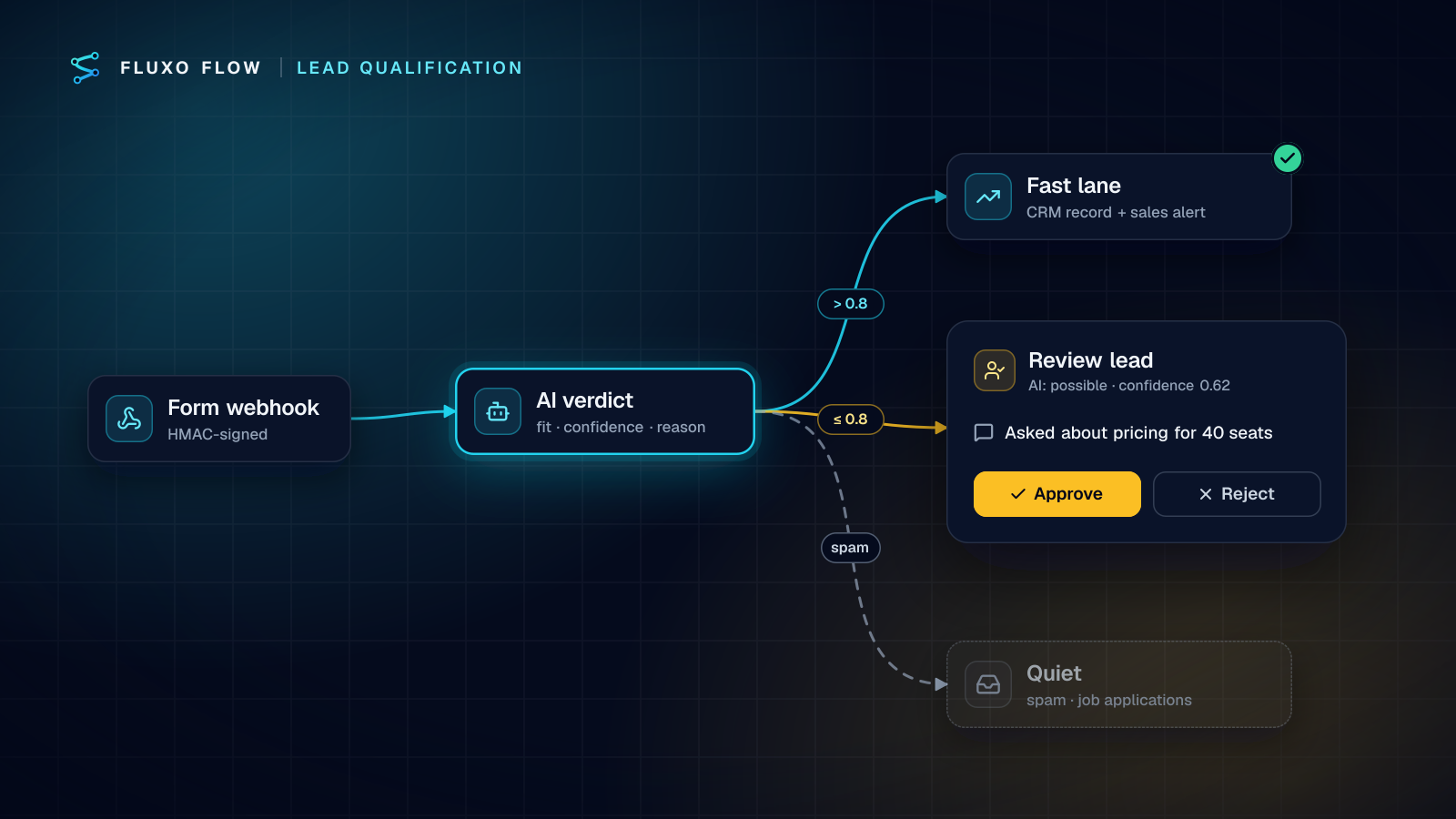
- Webhook trigger. Your website form (or your form tool) posts each submission to the workflow's webhook URL.
- Transformer. Normalise the contact: trim names, lower-case the email, tidy the phone number.
- Agent (AI) step. Read the submission and return a structured verdict.
- Validator. Check the AI output has the fields you need, in the shape you expect.
- Router. Send high-confidence leads one way, low-confidence leads another, and spam to a quiet branch.
- Human Review. Borderline leads pause here until someone on your team approves or rejects them.
- Actions. Create or update the record in your CRM (the HubSpot and Salesforce connectors are live), post a Slack message to the sales channel, and send the lead a reply.
Let's look at the parts that matter.
1. Trigger: a secured webhook
A Webhook trigger gives you a fixed URL that your systems can POST to. Protect it: in Fluxo Flow you choose an auth mode (a shared secret header, an HMAC signature, or both) and can add an IP allowlist. Remember that configuring a trigger doesn't switch it on; you activate the webhook from the trigger's settings once you've saved the workflow.
Form tools sometimes deliver the same submission twice. If that would create duplicate CRM records for you, record each submission ID in a persistent Memory step and use a Router to skip IDs you've already handled.
2. The AI step: ask for a verdict, not an essay
The most common mistake is a prompt like "Is this a good lead?" You get a paragraph back, and nothing downstream can act on a paragraph. Ask for structured output instead, and define every field:
You qualify inbound leads for a B2B software company.
Read the submission and return JSON with exactly these fields:
- category: one of "sales_inquiry", "support", "partnership", "job_application", "spam"
- fit: one of "strong", "possible", "weak"
- confidence: a number from 0 to 1
- reason: one sentence a salesperson can read in five seconds
Only use information in the submission. If something is unknown, say so in the reason.
Here is the verdict schema, field by field. Paste it into the Agent node's output schema so every run returns the same shape:
| Field | Type | Allowed values | Used by |
|---|---|---|---|
category | string | sales_inquiry, support, partnership, job_application, spam | Router (which lane) |
fit | string | strong, possible, weak | Router (fast lane needs strong) |
confidence | number | 0 to 1 | Router threshold |
reason | string | one sentence | Human Review prompt, CRM note |
unknowns | string or null | what the submission didn't say | Reviewer, enrichment |
{
  "type": "object",
  "required": ["category", "fit", "confidence", "reason"],
  "properties": {
    "category": { "enum": ["sales_inquiry", "support", "partnership", "job_application", "spam"] },
    "fit": { "enum": ["strong", "possible", "weak"] },
    "confidence": { "type": "number", "minimum": 0, "maximum": 1 },
    "reason": { "type": "string", "maxLength": 200 },
    "unknowns": { "type": ["string", "null"] }
  }
}
The Agent node lets you set an output schema, a model, temperature and a token limit. For classification, use a small, fast model and a low temperature; you want consistent answers, not creative ones. The "only use information in the submission" line matters: it stops the model from inventing a company size it can't know.
3. Validate before you route
Models occasionally return something malformed: a missing field, a confidence of "high" instead of a number, an extra category you didn't ask for. Put a Validator straight after the AI step. It checks the output against rules or a JSON schema and sends the run down a pass or fail branch. On the fail branch, send the lead to human review rather than dropping it. A lead you didn't qualify is cheaper than a lead you lost.
4. Route on confidence, not just on the label
A Router sends the run down the first route whose conditions match. A sensible starting point:
| Route | Condition | What happens |
|---|---|---|
| Fast lane | category is sales_inquiry AND fit is strong AND confidence > 0.8 | Create the CRM record and alert sales right away |
| Review | category is sales_inquiry AND confidence ≤ 0.8 | Pause for a person to decide |
| Redirect | category is support or partnership | Forward to the right inbox |
| Quiet | category is spam or job_application | Log it, no alerts |
| Default | anything else | Human review |
The thresholds are yours to tune. Start conservative, with more leads going to review, and loosen the threshold once you've seen a few weeks of decisions.
Where the human fits
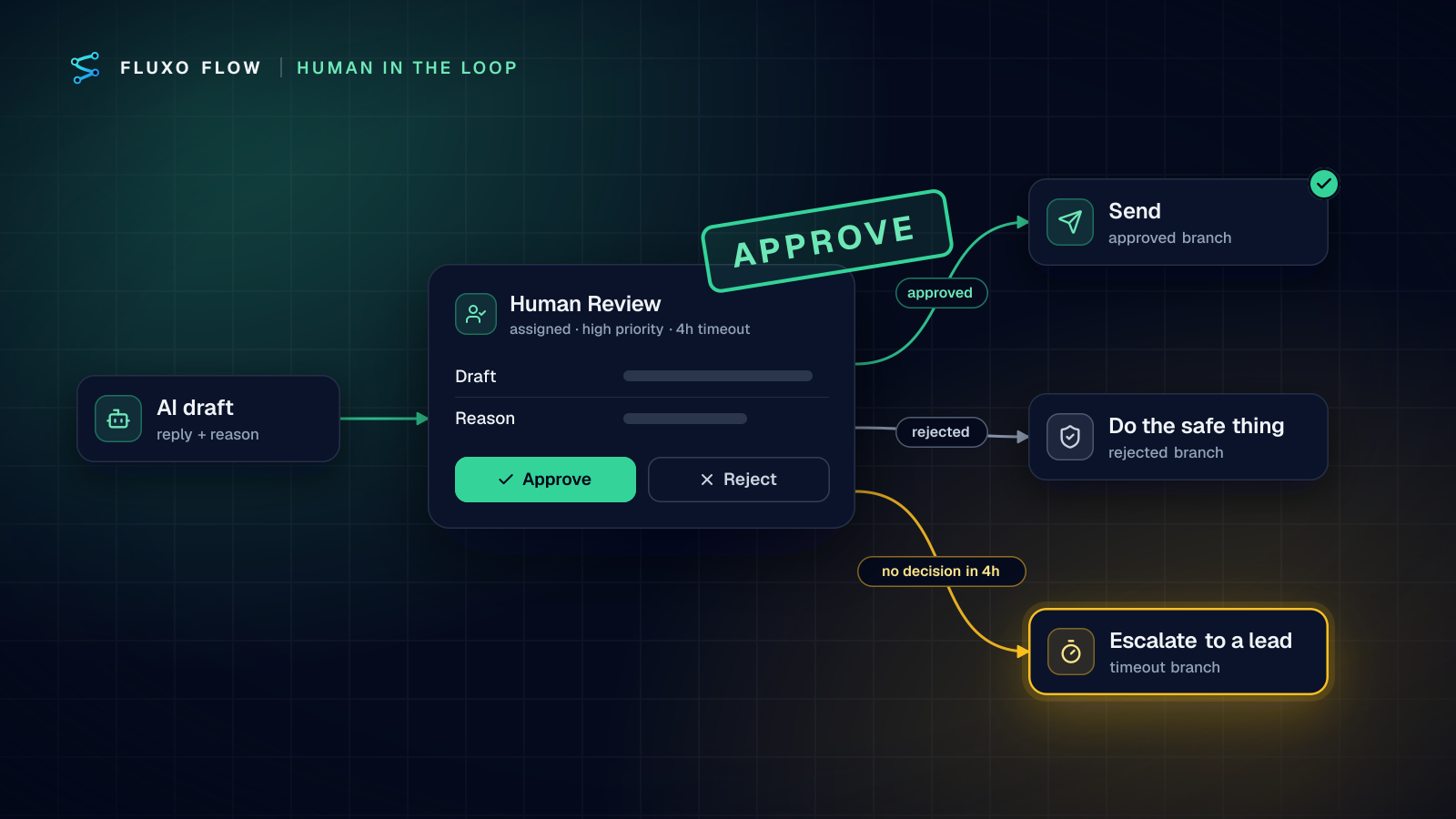
The Human Review step is what makes this safe to run on real leads. When a live run reaches it, the run pauses and the item appears in the Review Queue with the prompt you wrote, for example: "AI rated this lead possible (confidence 0.62): 'Asked about pricing for 40 seats, no company name given.' Approve to add to the CRM and alert sales."
A few design choices make review fast instead of a bottleneck:
- Show the reviewer the AI's reason. They should be able to decide in seconds without opening another tool.
- Assign an owner. Reviews can be assigned to a specific teammate and reassigned in bulk. Anyone with the Support Agent role or above can decide.
- Set a timeout. If nobody decides within, say, four business hours, the run follows the timeout branch. Make that branch do something sensible, like alerting the sales lead, rather than letting leads sit forever.
- Batch it. The Review Queue supports bulk approve and reject for the obvious ones.
Review alerts arrive in the notification bell of everyone who can review. If your team lives in Slack, add a Slack Post step before the review so the channel knows something is waiting.
Test it without touching real leads
Before you point a live form at the workflow, press Dry Run (it works on the Free plan; live runs need a paid plan). A Dry Run runs in your browser and simulates every side effect: no CRM records are created, no Slack messages go out and the AI step returns placeholder output, so it doesn't use your API key. For the Human Review step you pick which decision to simulate (approved, rejected or timeout), so you can check every branch.
Then do one real run with a test submission from your own email address, and read the trace step by step. You'll see what each step received and returned, how long it took and the estimated AI cost.
What it costs to run
The AI step runs on your own AI provider key, so you pay your provider directly at their rates with no markup. A qualification prompt plus a typical form submission is usually well under two thousand tokens, and the verdict is a few hundred. On a small, fast model that is typically a fraction of a cent per lead, but rates vary by provider and model, so check your provider's pricing. Our guide to bringing your own AI key shows how to do the math.
Every server run also has a built-in safety limit: it stops if its estimated AI cost passes $2, which protects you from a runaway loop.
Common pitfalls
- Letting the AI write to the CRM unchecked. Always validate, and route anything uncertain to a person.
- Asking the model for facts it can't know. Enrich from your own systems with an HTTP Request or Integration step instead.
- Never reviewing the reviews. Once a month, look at which AI verdicts people overturned. That's how you improve the prompt and the thresholds.
- Sending an AI-written reply without review at first. Start with a fixed acknowledgement email; add AI-drafted replies later, behind a review step.
The takeaway
AI lead qualification works when the model does the reading and sorting, your rules do the routing, and a person makes the calls that matter. You get speed on the easy leads and judgement on the hard ones, and every decision is in the run history if someone asks why a lead went where it did.
Want a head start? Open the AI lead qualification template on the canvas and adapt the schema and thresholds above, or read where to put human checkpoints before you loosen the review lane.
Put this into practice
Build it on the canvas and Dry Run it on the Free plan, with no credit card. Run it live on a paid plan, on your own AI key.
- lead qualification
- sales ops
- human review
- AI