Playbooks
Employee onboarding automation: a role-specific plan on day one
Employee onboarding automation with Notion and Slack: a role library that keeps AI plans consistent, IT access checklists, manager approval, what stays human.
Good onboarding is mostly remembering things: the accounts IT needs to create, the laptop that takes a week to arrive, the people a new hire should meet in week one, what "good" looks like at day 30. When it depends on who happens to remember, new hires get uneven first weeks.
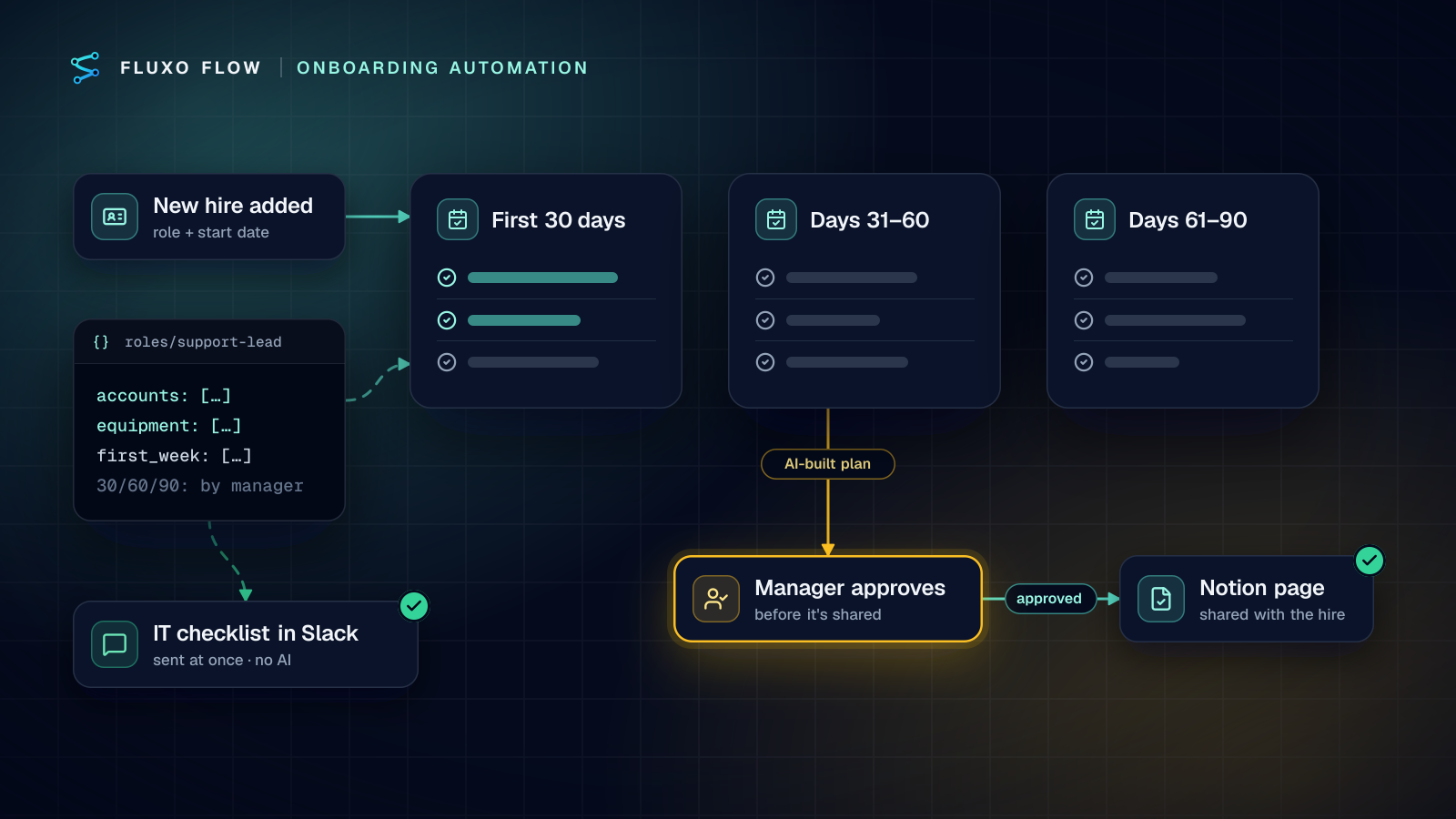
Short answer: employee onboarding automation works when the plan comes from a role library you maintain, not from the AI's imagination. When a hire is recorded, the workflow looks up the role's entry (accounts, equipment, first-week meetings, 30/60/90 outcomes), sends IT the account checklist straight away, has AI turn the entry into a personalized plan in Notion, and asks the manager to approve the plan before it's shared. The welcome, the first one-to-one and the buddy introduction stay human.
This post walks through the role library, the workflow (built on the new hire onboarding template), the IT checklist, the manager approval, and the parts you shouldn't automate.
Where this fits next to an HR suite
HR suites handle contracts, payroll, benefits and compliance paperwork, and if yours has onboarding checklists, use them for the HR side. The gap this pattern fills is the operational side that spans tools: the plan in your Notion wiki, the request in IT's Slack channel, the manager's sign-off. It suits teams that live in Notion and Slack and want every role's first weeks to be consistent without a heavy system.
The role library: what keeps AI output consistent
Ask a model to "build an onboarding plan for a Support Lead" and you'll get a plausible plan, different every time, with accounts you don't use. The fix is to give it a source of truth per role and make its job adapting, not inventing.
One entry per role, with these fields:
| Field | Example (Support Lead) | Who owns it |
|---|---|---|
role, team | Support Lead, Customer Support | People ops |
accounts | Helpdesk (admin), Slack, Notion (Support space), CRM (read) | IT |
equipment | Laptop, headset | IT |
first_week | Shadow three ticket shifts; meet the product lead; read the escalation runbook | Team manager |
outcomes_30_60_90 | 30: handles tier-1 queue alone. 60: owns the weekly quality review. 90: runs escalations | Team manager |
buddy_rule | A senior agent on the same shift | Team manager |
docs | Links to the runbooks and wiki pages for the role | Team manager |
Three rules make the library work:
- Accounts and equipment never come from the AI. They're copied from the entry, so IT gets the same list every time and nothing is invented.
- Outcomes are written by managers. The AI can phrase them for the person and fit them to the start date; it doesn't decide what success means.
- A missing role stops the workflow. If the hire's role has no entry, route to people ops to create one rather than letting the AI improvise.
Where to keep it: a Notion database works well because managers can edit their own roles. Read the matching entry with a Notion query (an HTTP Request step or the Notion connector), or for a small set of roles, keep each entry in a persistent Memory step under a key like roles/support-lead and read it by key. Either way, a lookup by exact role is better than a similarity search here: you want the Support Lead entry, not the closest one.
The workflow
The template ships with four steps:
- Webhook trigger, "New hire added": your HR system or a form sends the new hire's details.
- AI step, "Build the onboarding plan": returns JSON with
name,role,team,start_date,it_requestsandchecklist(accounts and equipment for IT, a day-one schedule and a first-two-weeks checklist tailored to the role). - "Create onboarding page in Notion": creates the page in your people database.
- "Ping IT in Slack": posts to
#it-requestswith the link and the accounts to set up.
Notion (live) and Slack (live) are both live connectors. The template is deliberately small. Here's how I'd extend it with the role library and an approval:
- Webhook trigger with an
Idempotency-Keyset to the HR system's hire id, so a resent event doesn't create a second plan (why that matters). - Transformer: keep only
name,role,team,manager,start_date. Personal email, address, salary and anything else from the HR record has no business in a prompt. - Read the role entry (Memory or Notion). Router: no entry → notify people ops and stop.
- Slack post to IT, immediately, with
accountsandequipmentcopied from the entry and the start date. No AI involved, and IT gets maximum lead time. - AI step: turn the entry into a plan for this person and start date: day-one schedule, first-week meetings, and 30/60/90 checklists from the manager's outcomes.
- Human Review, assigned to the manager: approve, approve with edits, or reject with notes.
- Approved → create the Notion page and post the link to the manager and the team channel.
The IT access checklist
The Slack message to IT is the part with the most security weight, so design it carefully:
- Request by role, not by person. "Support Lead: helpdesk admin, Slack, Notion (Support space), CRM read-only" gives least-privilege access by default and makes exceptions visible.
- Include dates. Start date for creation; for contractors, an end date so removal is scheduled from day one.
- Never put credentials in Slack or Notion. The checklist says which accounts exist; passwords and recovery codes go through your identity provider's own flow.
- Close the loop in the thread. IT replies in the thread as each account is done, so the manager can see what's ready before day one.
- Reuse it for offboarding. The same role entry tells you which accounts to remove when someone leaves. A mirrored offboarding workflow is the cheapest access review you'll ever run.
Two platform details worth knowing. Slack's chat.postMessage needs the chat:write scope, so the Slack connection must be able to post in the IT channel. And the Notion API's create a page endpoint requires the integration to have Insert Content capabilities on the parent database, which is why the template's setup asks you to share the people database with your integration (both checked October 4, 2026).
The workflow requests accounts; it doesn't create them. Fluxo Flow's Google and Microsoft connectors cover things like Sheets, Gmail send, Calendar and Docs, not user administration, so account creation stays in your admin consoles.
Manager approval
An onboarding plan is a promise to a new person about their first three months. The manager should read it before the new hire does.
Make the review quick:
- Show the plan and its source. The review prompt should include the role entry next to the AI's plan, so the manager can see what was adapted.
- Ask one question. "Approve this 30/60/90 plan for Priya, starting Monday on the Support team?"
- Let them edit instead of rejecting. Approving with edits (move a meeting, sharpen an outcome) is faster than sending it back.
- Set a timeout that escalates. If the manager hasn't decided two working days before the start date, the timeout branch pings people ops rather than publishing an unreviewed plan.
One practical constraint: in Fluxo Flow, reviews are decided by workspace members with the Support Agent role or above, so every manager who approves plans needs a seat in the workspace. Review alerts go to the in-app notification bell (there are no email alerts for reviews yet), so add a Slack message to the manager when a review is waiting. More on review design in the human-in-the-loop guide and on the Human Review step itself.
What to keep human
Automation should clear the logistics so people have time for the parts that matter. Keep these out of the workflow:
- The welcome message. It should come from the manager, in their words. An AI-written welcome is noticed, and it sets the wrong tone for day one.
- The first one-to-one. Schedule it automatically if you like; the conversation is the point.
- The buddy introduction. The library says who; a person makes the introduction.
- The 30-day check-in. The plan says what to review; the manager and the new hire decide how it's going.
A useful test: if the new hire would feel worse knowing a step was automated, don't automate it.
You can build and Dry Run the whole workflow free, with the AI, Notion and Slack steps simulated. Live runs start on Basic ($39/mo), and the AI step runs on your own provider key. Start with the new hire onboarding template, write library entries for your three most common roles, and run it for your next hire alongside your current process. Connect Notion and Slack first (the Notion + Slack guide shows how the two work together); more operations patterns are on the operations page.
Frequently asked questions
Can the workflow create the new hire's accounts automatically?
It requests them rather than creating them. The workflow sends IT the exact list of accounts and equipment for the role; IT creates them in your identity and admin tools. Fluxo Flow's Google and Microsoft connectors don't manage user accounts.
Can I add our standard onboarding steps?
Yes. Put them in the role library (or, for a single standard list, in the AI step's system prompt) and every plan includes them. Keeping them in the library is better: the AI adapts the wording but can't drop or invent steps.
What starts the workflow?
Anything that can send a webhook when someone is hired: your HR system, an applicant tracking system, or a simple internal form. The template's trigger is a Webhook that receives the new hire's name, role, team and start date.
Put this into practice
Build it on the canvas and Dry Run it on the Free plan, with no credit card. Run it live on a paid plan, on your own AI key.
- onboarding
- Notion
- Slack
- human review
- workflow design