Playbooks
Field service automation: five workflows for home-service shops
Field service automation mapped to the job lifecycle: five workflows for Jobber, Housecall Pro and ServiceTitan, and when native QuickBooks sync is enough.
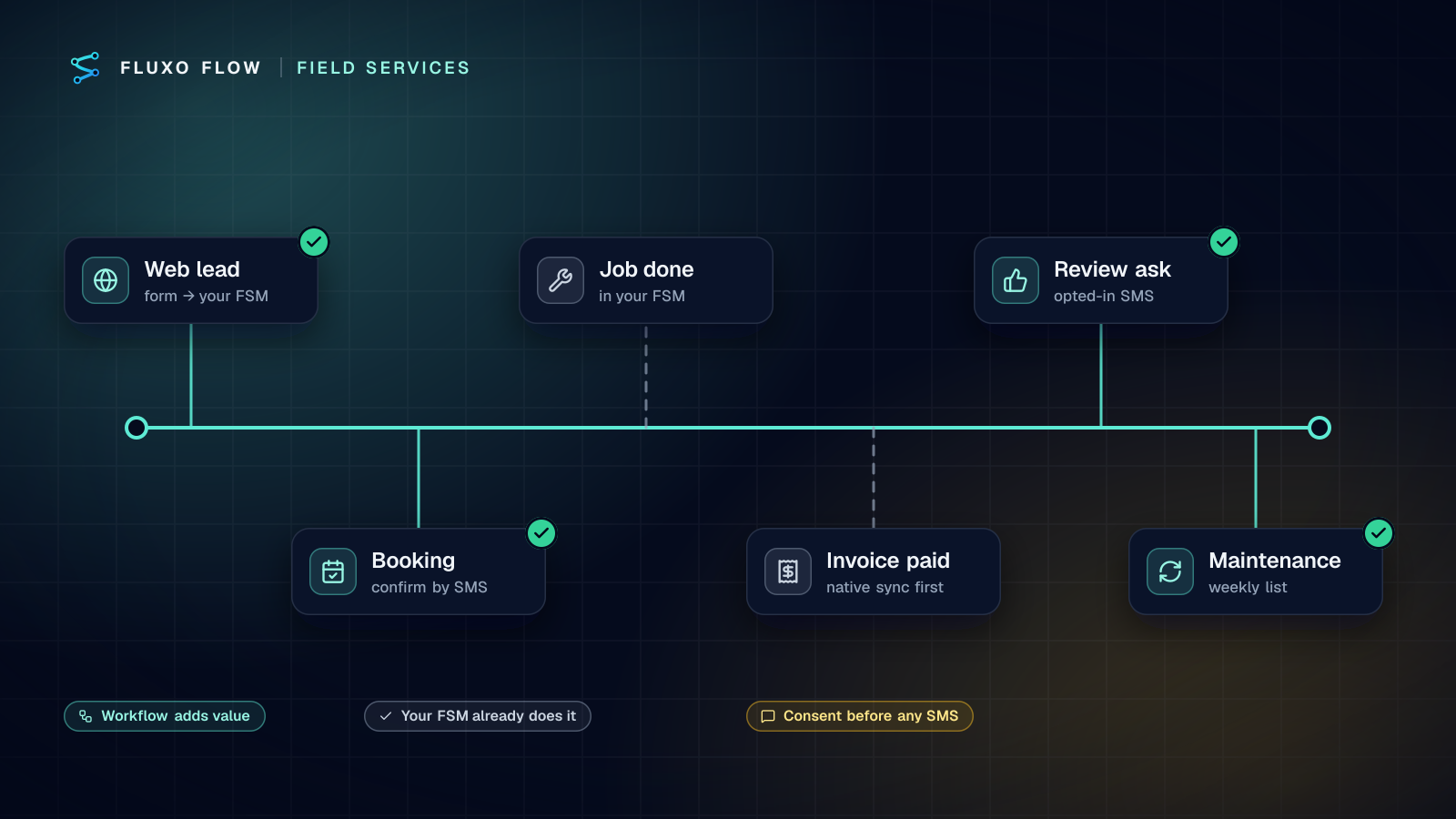
Short answer: field service automation works best when you map it to the job lifecycle (lead → booking → job → invoice → review → follow-up) and only automate the gaps your field service software doesn't already cover. For most home-service shops those gaps are: getting web leads into Jobber, Housecall Pro or ServiceTitan without retyping, confirming bookings in the channel customers read, pushing invoices to QuickBooks when native sync doesn't fit, asking for reviews after payment, and running maintenance reminders. If your software's built-in QuickBooks sync or reminders already do the job, use them. Five workflows below, with honest notes on where native beats custom.
The job lifecycle map
Before building anything, sit with the office manager and walk one job from first contact to the follow-up six months later. For each stage, ask: who touches it, what do they retype, and what gets forgotten?
| Stage | Typical gap | Native in most FSMs? | Workflow in this post |
|---|---|---|---|
| Lead | Web form emails get retyped into the FSM; after-hours leads wait | Partly (online booking forms) | 1. Web lead → FSM |
| Booking | Customer confirmation by the channel they actually read | Often (reminders) | 2. Booking confirmation |
| Job | Tech notes, photos, time | Yes, that's the core product | None. Leave it alone. |
| Invoice | Getting invoices into accounting with the right mapping | Often (accounting sync) | 3. Invoice to QuickBooks, only if needed |
| Review | Asking every happy customer, every time | Sometimes, often an add-on | 4. Review request after payment |
| Follow-up | Seasonal maintenance, unsold estimates | Sometimes | 5. Maintenance reminders |
The middle of the lifecycle (dispatching, doing the job, collecting payment) is what Jobber, Housecall Pro and ServiceTitan are built for. Automate the edges.
Five workflows
All three FSM connectors are beta and use your own API access: Jobber (beta), Housecall Pro (beta) and ServiceTitan (beta). Housecall Pro's API is "available only to Pros on a MAX plan" (Housecall Pro API overview, checked October 4, 2026). ServiceTitan needs an approved app: its application key from the developer portal plus client credentials your tenant admin generates. Their app triggers poll for new records on your plan's schedule interval.
1. Web lead → your FSM, without retyping
Webhook trigger (website form) → AI Generate (parse) → Validator → find the customer → Router → create in the FSM → Slack to the office.
Web forms produce free text: "AC not cooling, upstairs only, 2-story house, can someone come Thursday?" An AI step extracts service type, urgency, address, preferred time and a one-line summary into a schema. Then:
- Find first, create second. Jobber "Find clients", Housecall Pro "Find customers" or ServiceTitan "Find customers" by phone or email. Duplicate customers are the most common data mess in FSMs.
- Create the right record per tool. In Jobber, "Create a request" for the client. In ServiceTitan, "Create a booking (lead)", which lands in the booking queue for your CSRs to review, the way ServiceTitan expects web leads to arrive. In Housecall Pro, "Create a customer", then "Create an estimate" or "Create a job" depending on how your office works.
- Tell the office. Slack "Post a message" with the summary, so after-hours leads are the first thing seen in the morning.
AI here only reads and structures. It doesn't quote prices or promise times. A Router sends anything marked urgent (no heat in winter, active leak) to a Slack channel the on-call tech watches.
2. Booking confirmation by the channel customers read
Jobber "New job" / Housecall Pro "New job" / ServiceTitan "New job" → Router (has a mobile number and SMS consent) → Twilio "Send an SMS" → log.
Check your FSM's built-in reminders first; most include appointment notifications, and if yours work, keep them. Build this only when you need something they don't do: a message from your own local number, wording per job type, or a second language.
The Twilio connector (beta) sends SMS or WhatsApp from your numbers. "Look up a phone number" validates the number first (free format check; line-type lookup is a paid Twilio add-on), which avoids texting landlines.
3. Invoice to QuickBooks, only when native sync doesn't fit
Housecall Pro "New invoice" / ServiceTitan "New invoice" → QuickBooks "Find a customer" → Router → "Create a customer" if missing → "Create an invoice" → optional "Send an invoice".
Be honest with yourself about whether you need this. Jobber's native sync covers a lot: it syncs "clients, products and services, timesheets, invoices, payments, refunds, tips, and payouts from Jobber to QuickBooks Online," one way (Jobber QuickBooks Online sync, checked October 4, 2026). Housecall Pro and ServiceTitan offer their own accounting integrations too.
Build the workflow when the native option doesn't exist on your plan, maps fields in a way your accountant can't live with (classes, locations, item names), or when you need a step in between, such as a Human Review on invoices above a threshold. The QuickBooks Online connector (beta) creates customers, invoices and estimates, sends invoices and records payments (QuickBooks Online API).
Never run both native sync and this workflow for the same invoices. You'll get duplicates.
4. Review request after payment
QuickBooks "New or updated invoice" (Balance = 0 means paid) → Memory (already asked this customer?) → Router (consent, not a complaint job) → Twilio "Send an SMS" with your review link → Memory write.
Asking at payment rather than at job completion means the customer has already seen the final bill and is still satisfied. Three guards keep this from backfiring:
- Only customers who consented to texts. Store consent in your FSM or a sheet, and route on it.
- Skip jobs with an open issue. If your FSM tags callbacks or complaints, route those to the office instead.
- Ask once. A Memory key per customer stops repeat requests for repeat jobs within, say, a year.
If you use Housecall Pro or ServiceTitan without QuickBooks, start from their "New invoice" trigger and a payment status from your FSM instead.
5. Maintenance reminders
Scheduled trigger (weekly, Monday morning) → Google Sheets "Read rows" (maintenance agreements with last service date) → Loop → Router (due within 30 days) → Slack list for the office + Twilio SMS for opted-in customers.
Seasonal tune-ups and maintenance plans are recurring revenue that leaks when nobody remembers. Keep the agreement list in a sheet your office already maintains (or export from your FSM), and let the workflow surface who's due. A booking link in the SMS lets customers self-schedule; a Slack list lets the office call the rest.
Twilio SMS and consent
Texting customers is regulated. This is not legal advice, but every shop should know three things:
- Consent. The FCC's TCPA rules (47 CFR 64.1200) require "prior express consent" for autodialed calls to wireless numbers and "prior express written consent" for telemarketing; review requests and reminders can cross into marketing, so get consent in writing at booking.
- Opt-out. The same rules let people revoke consent by any reasonable means, including replying "stop," and require honoring it within ten business days at most. Twilio's "New incoming SMS" trigger can catch STOP replies and update your consent list.
- Registration. US carriers require A2P 10DLC registration, a brand and a campaign, for business SMS from 10-digit numbers (Twilio A2P 10DLC). Unregistered traffic gets filtered.
Data quality decides whether any of this works
Every workflow above matches records by phone number or email. In most shops I've worked with, the FSM has the same customer two or three times: once from a phone booking, once from the website, once with a typo in the address. Automation on top of messy records multiplies the mess.
Before switching on workflow 1, spend an afternoon on three things:
- Pick one matching key. Mobile number is usually best for home services; normalize it to one format (Twilio's "Look up a phone number" returns a standard format you can store).
- Merge the worst duplicates by hand. Search your FSM for your ten most frequent customers and fix those first.
- Decide where consent lives. One field, in one system, that every messaging workflow reads.
What to measure
| Workflow | Measure |
|---|---|
| 1. Web leads | Time from form to record in the FSM; duplicates created per week |
| 2. Confirmations | No-shows and "I didn't know you were coming" calls |
| 3. Invoices | Mismatches your bookkeeper fixes per month |
| 4. Reviews | Requests sent vs reviews received; STOP replies |
| 5. Maintenance | Reminders sent vs tune-ups booked |
If a number doesn't move after a month, turn the workflow off. Fewer, better automations beat a canvas full of things nobody checks.
Rollout and testing
Start with workflow 1 (leads), because it touches revenue and needs no customer messaging. Add 4 and 5 once consent capture is in place, and 3 only after you've confirmed native sync can't do the job.
Build each one and Dry Run it with sample data: Dry Run simulates every Jobber, Housecall Pro, ServiceTitan, QuickBooks and Twilio call, so no customer gets a text while you test. Live runs, schedules and app triggers start on Basic; the Free plan builds and Dry Runs only.
The takeaway
Your FSM runs the middle of the job. Automate the edges, where leads get retyped, reviews don't get asked for and maintenance plans get forgotten, and let native integrations do whatever they already do well.
Connect Jobber, Housecall Pro or ServiceTitan and start with the web lead workflow. If leads are your biggest leak, speed to lead automation covers how fast and how personally to respond, and field service automation collects the whole job lifecycle on one page.
Frequently asked questions
Does Jobber integrate with QuickBooks Online without extra tools?
Yes. Jobber's own QuickBooks Online sync sends clients, invoices, payments and more one way, from Jobber to QuickBooks Online. If that covers your needs, you don't need a separate workflow for it.
Can I automate review requests after a job?
Yes, for example by texting a review link when an invoice is paid. Only text customers who agreed to receive messages, honor STOP replies, and register your number for A2P 10DLC if you send from a US 10-digit number.
Which field service apps does Fluxo Flow connect to?
Jobber, Housecall Pro and ServiceTitan, all in beta, using your own API access. Housecall Pro's API is only available on its MAX plan, and ServiceTitan needs an approved app with its API keys.
Put this into practice
Build it on the canvas and Dry Run it on the Free plan, with no credit card. Run it live on a paid plan, on your own AI key.
- field service
- workflow design
- finance ops
- SMS